

Security — users, roles, PIN, permissions
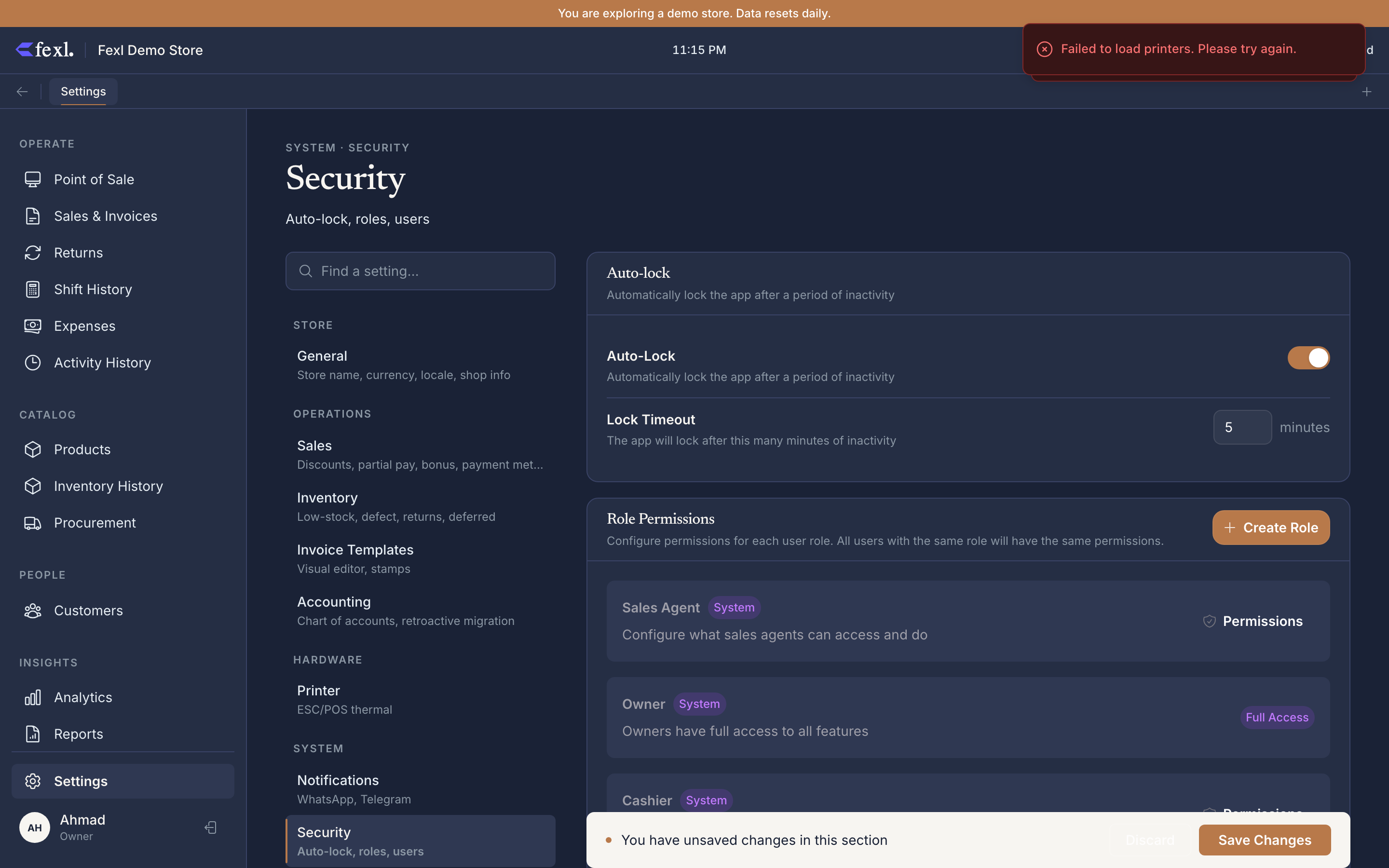
The Security tab defines who can use Fexl Lite and what each of them is allowed to touch. One tab, three jobs: user accounts, role permissions, and the idle auto-lock policy.
Users
A user has a name, a role, and a 4-digit PIN. No email, no password, no SSO — the model is deliberately retail-counter-shaped.
Add a user
In the Users card, click Add user. Pick a name, role, and 4-digit PIN. Save. The user can log in on any paired device immediately.
Edit or reset PIN
Use the row menu to Edit name/role or Reset PIN to set a new 4-digit code. The form blocks any change that would leave the tenant without an active owner.
Deactivate
Delete is a soft-delete: invoices, journal entries, and shifts reference the cashier by ID, so the row is preserved and marked inactive. History stays correctly attributed.
Roles
Fexl Lite ships four system roles — they cannot be deleted or renamed.
Owner
Full access, irrevocable. Owner toggles are disabled in the matrix by design, and the system blocks any change that would leave the tenant ownerless.
Manager
Trusted operator. Most permissions on out of the box — POS, products, inventory, customers, suppliers, returns, reports, settings — but settings:manage_users is not granted unless an owner turns it on. That single permission gates the Users list.
Sales agent
POS-focused. Read on products/customers/inventory; write on invoices and returns. No cost prices, no suppliers, no settings — the right shape for a floor seller who shouldn’t see margin.
Cashier
Most restricted: log in, ring sales, take payments, hand off the shift. No reports, no settings, no product editing.
Custom roles
Click Create role in the Role Permissions card to add tenant-specific roles. They behave like system roles but can be renamed and deleted. A role with zero permissions cannot be assigned — the user form rejects it.
Permissions matrix
Permissions are category:action pairs like invoices:create or inventory:adjust. The Role Permissions dialog groups them by category — roles are nothing more than a set of these toggles. Categories cover the full surface of the app:
- POS, Invoices, Returns, Customers — counter ops: ring sales, discount, refund, edit customer records.
- Products, Inventory, Suppliers — back-office data, including supplier payments.
- Delegates, Resellers — commission agents and consignment channels.
- Reports, Analytics — read-only access to P&L, AR Aging, KPIs. Split from Settings so a manager sees numbers without changing tax rates.
- Settings — itself permission-gated, with sub-permissions for manage users, manage tenant, and a baseline view.
- Cash drawer, Sessions, Billing — shift management, cash transfers, session checkout, bill printing.
- Restaurant-only — Tables, Orders, Kitchen Stations, Modifiers, Recipes, Ingredients, Printer Stations, Reviews, Events. Hidden in retail-only tenants.
- Cost — a single
cost:viewthat gates whether cost and margin show anywhere in the UI.
Toggling a permission applies on the next login or page reload.
PIN
A user’s PIN is a 4-digit code — the entire authentication story. It is entered on the lock screen and at sensitive actions that re-prompt regardless of session: cancelling an invoice, refunding, opening Settings, closing a drawer with variance, applying a discount above threshold.
If a user forgets, an owner uses Reset PIN on the row. If the owner themselves is locked out, Master Override PIN in System settings resets the active user’s PIN to a fresh default.
Auto-lock
Toggle Auto-Lock on (default) and set Lock Timeout between 1 and 60 minutes (default 5). When the idle period elapses, Fexl Lite drops to the lock screen. The same user re-entering their PIN lands back on the same screen with carts intact; a different user logs in fresh. Held carts are tied to whoever opened them, so a manager unlocking after a cashier walked away never adopts the cashier’s draft sale.
Related
- Getting started — first-launch flow that creates the initial owner.
- System settings — Master Override PIN, devices, sync controls.
- Sales settings — discount thresholds and cancel/refund rules that read these permissions.