

Process a refund in five steps
Refunds happen often. Fexl Lite makes them predictable: the same five steps, in the same order, every time. Learn the flow once and every scenario — card-back, partial return, defect, store credit — fits the same shape.
Overview
The wizard’s five steps are:
- Invoice — find the original sale.
- Products — pick which lines to return, and how many of each.
- Condition — for every returned unit, decide where it goes: back to stock, defect bin, or dispose.
- Defects — for any defect units, route them to the supplier or hold for inspection.
- Confirm — pick the refund method (cash / card / store credit) and post the entry.
Each step exists for a reason — short-cutting one creates accounting gaps. Read this overview once, then use the rest of this page as reference.
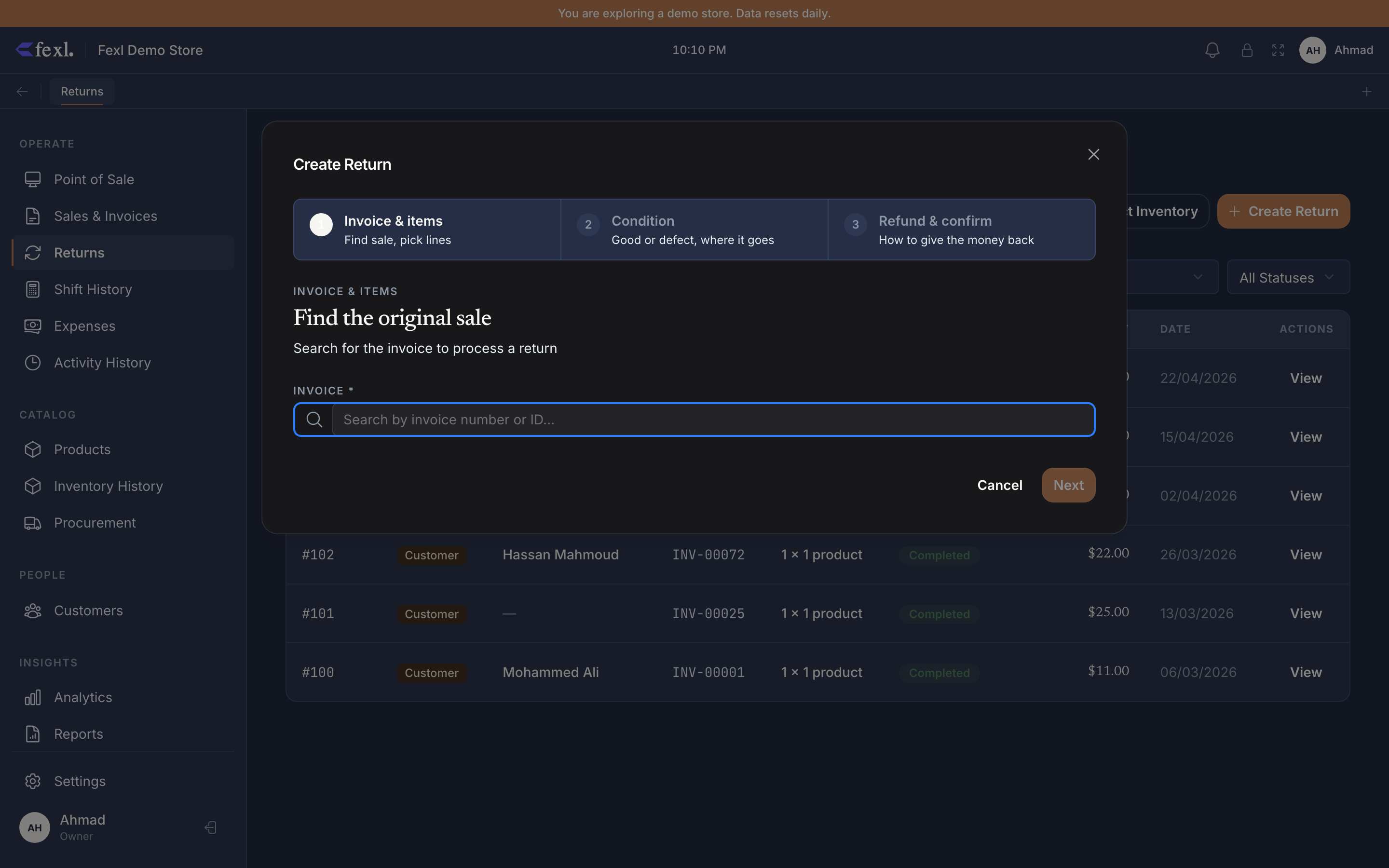
Find the original invoice
Three ways in:
- Scan the barcode on the customer’s receipt.
- Search by invoice number (
INV-2026-04829). - Filter by customer name if they don’t have the receipt.
The latest issued version surfaces — even if the invoice was cancelled and re-issued, you’ll see the live one.
Pick the lines to return
Tick the checkbox next to each line. Edit the quantity if the return is partial — for serialised items, the picker lets you select specific IMEIs from the original sale.
Bonus items (BOGO, free gifts) appear with a BONUS chip on the line. Returning a bonus reverses both sides of the promotion.
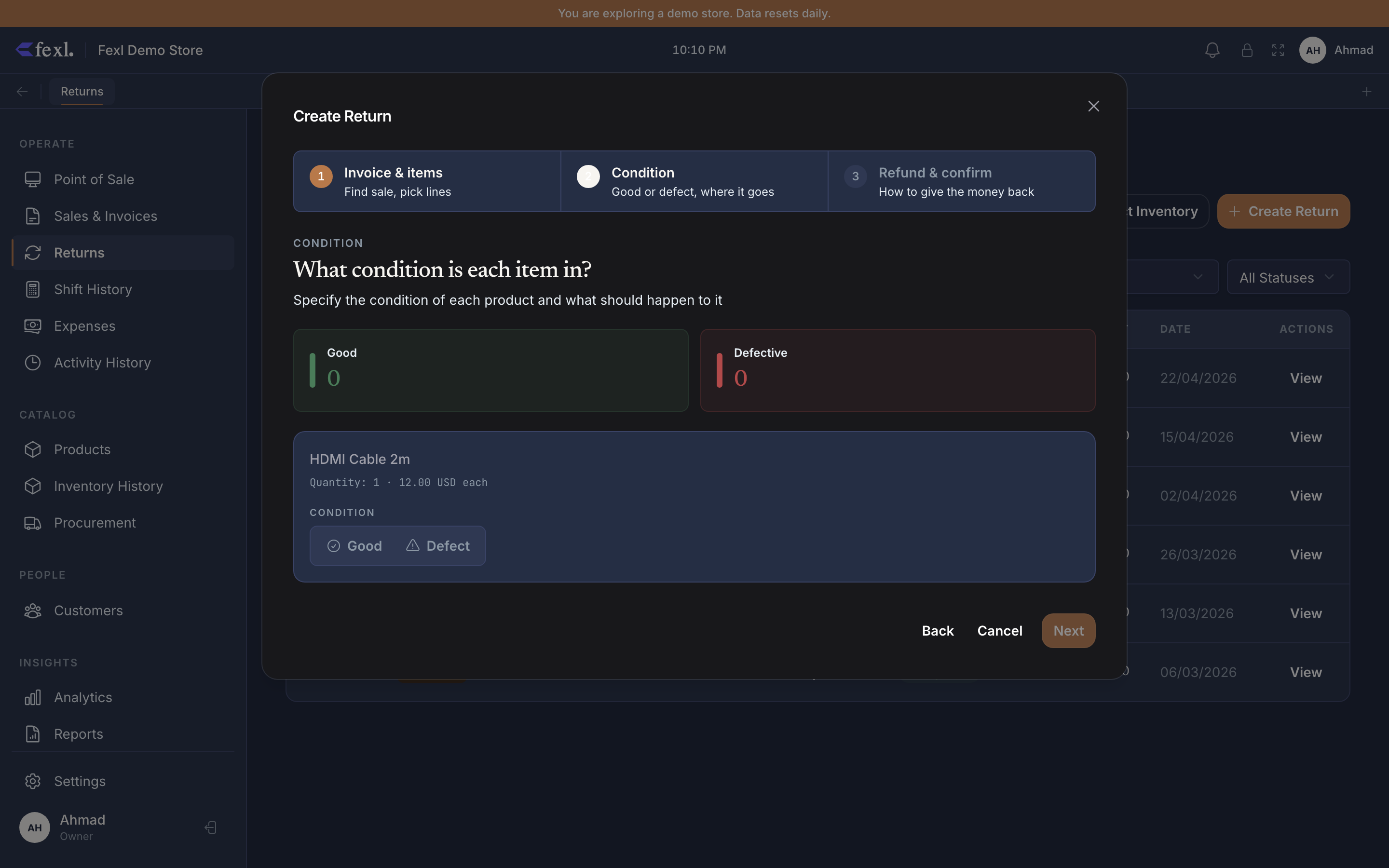
Set the condition of each item
For every returning unit, pick one of three dispositions:
- Resaleable — the item goes back to regular stock at its original cost.
- Defect — the item goes to Defect Inventory, not regular stock. You’ll route it to a supplier or dispose of it from there.
- Dispose — the item is written off immediately. Cost moves to the disposal expense account.
The disposition counts must sum to the line’s return quantity. The wizard blocks step 4 until they do.
Route any defects
If you marked anything as Defect in step 3, this step appears. For each defect line, choose:
- With supplier — the unit ships back for credit or replacement. Tracked in the supplier’s RMA queue.
- Pending inspection — your tech checks it first. Stays in
Defect Inventorywith statuspending. - Resolved (dispose) — write it off now.
If nothing was flagged as a defect, the wizard skips this step.
Choose refund method and confirm
Four settlement choices, depending on what the customer is owed and what they owe you:
- Cash — opens the cash drawer; the amount comes out of the active shift’s open sub-account. Capped at
invoice.amount_paidsince v1.6.105 — a return can never pay back more cash than the customer paid in. - Card — refunds to the original card terminal. The terminal log is the source of truth — if the network call fails, the refund stays in
pendingand you retry from the invoice detail page. - Deduct from debt — applies the refund against any outstanding balance the customer owes on the original (or other open) invoices. The default since v1.6.105 when the customer carries debt; an allocation hint shows how the refund will split between cash, debt, and credit before you confirm.
- Store credit — adds to the customer’s running balance. They can spend it next visit or withdraw it at any time.
Review the total. Press F9 to confirm. The receipt prints automatically on the active receipt printer.
Watch the full flow
A 3:42 walkthrough of every step on a real Iraq-locale store:
Troubleshooting
Wizard won’t open
Cause — Returns are disabled in Settings. Fix — Settings → Sales → Returns → toggle on.
Step 4 is stuck on a defect line
Cause — No supplier RMA queue configured for that line’s supplier. Fix — Add a supplier in Suppliers → Setup, or pick “Resolved (dispose)” instead.
Card refund hangs in pending
Cause — The card terminal disconnected mid-call. Fix — Retry from the invoice detail page. If it still fails, settle as cash and reconcile manually.
Receipt prints Serial Number: 1689 instead of the IMEI
Cause — Pre-v1.6.100 regression where the backend enricher leaked the database primary key as if it were a serial number. #62 v1.6.100
Fix — Update to v1.6.100 or later. The fix is server-side, no client action needed.
API call (advanced)
If you’re scripting refunds against the API:
curl -X POST https://api.fexl.io/v1/refunds \ -H "Authorization: Bearer $FEXL_TOKEN" \ -d '{ "invoice_id": "INV-2026-04829", "lines": [{ "id": 12, "qty": 2, "condition": "resaleable" }], "method": "card", "operator": "ahmed.k" }'The endpoint is idempotent — sending the same invoice_id + lines payload twice produces one refund and a 409 on the retry.
Related
- Defect Inventory — what happens after step 3
- Returns settings — disable returns, set time-window limits, approval thresholds
- Cancel an invoice — when partial isn’t enough
- Release notes — v1.6.100 — the four refund-related fixes shipped in this version