

Invoices in Fexl Lite
The Invoices page is the system of record for every sale Fexl Lite has ever rung. Most users land here to look something up — find a receipt, check who owes what, reprint for a customer — but it’s also where you cancel, refund, and create invoices that didn’t go through the POS.
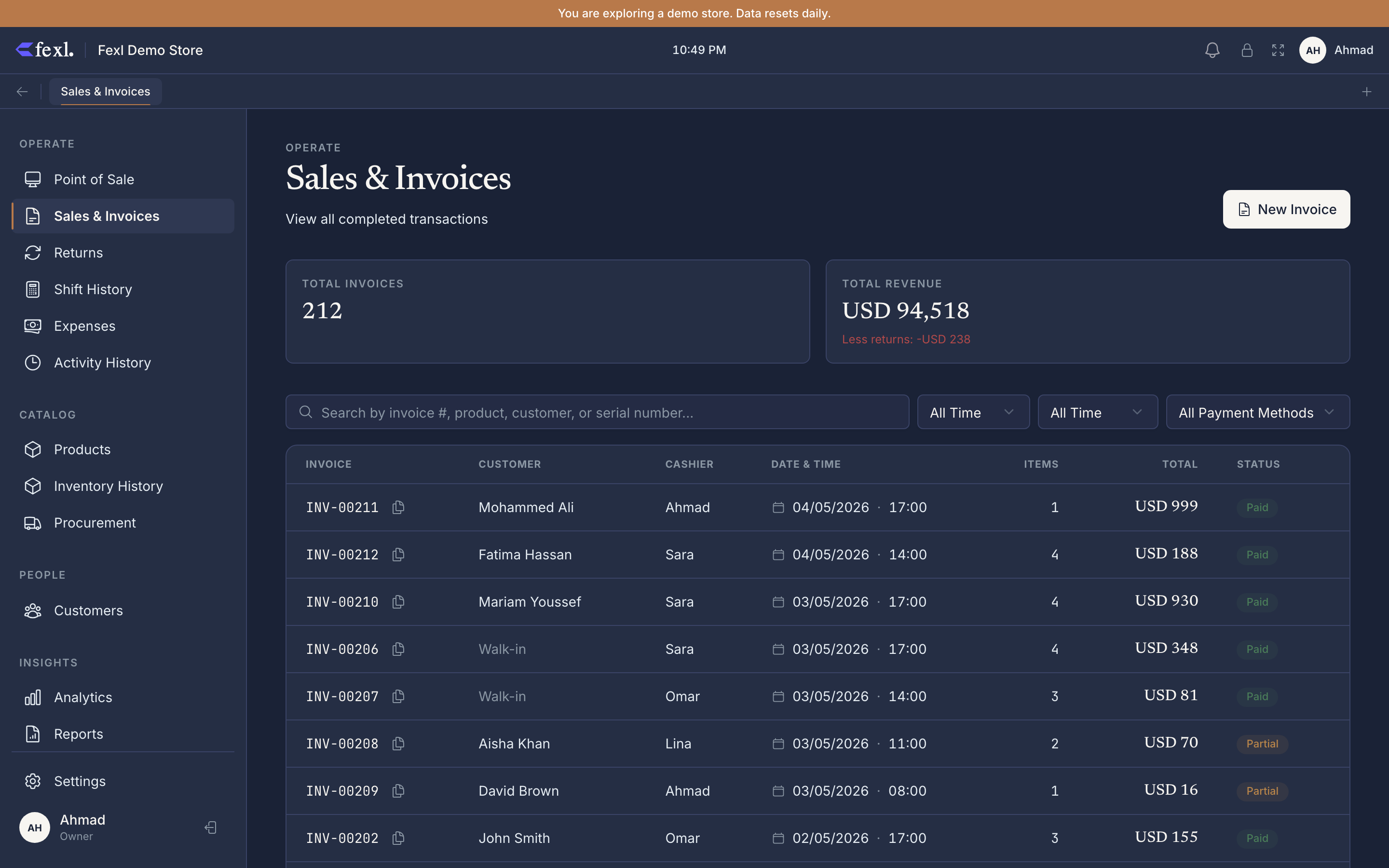
What’s on the page
Two summary cards sit on top — total invoices in the current filter, and total revenue (already net of returns and, when enabled, deferred revenue). Below that is the filter bar, then the list itself.
The desktop list has eight columns:
- Invoice — number, with a one-click copy icon.
- Status — the canonical state of the sale. #59 v1.6.100 This column was added so you can scan a long list without your eye traversing the whole row.
- Customer — name, plus a delegate tag underneath when one is assigned.
- Date / Time
- Items — count of line items.
- Payment — primary payment method.
- Total — final billed amount. If returns were processed against the invoice, the original total is struck through and a Refunded badge sits below the net. #66 v1.6.100
- Actions — opens the detail dialog.
On phones, the same data collapses into a card grid; the Status column shows up at the top right of each card.
Status column at a glance
The Status badge resolves through a single helper, so the same flow can’t show one label in the list and another in the detail dialog.
- Paid (green) — fully settled.
- Partial (yellow) — money still owed by the customer; the cart was checked out as a partial payment.
- Split (purple) — paid, but with multiple methods on one invoice.
- Pending COD (orange) — shipped via a courier who’ll collect on delivery; nothing has been booked to the cash drawer yet.
- Cancelled (rose) — voided, with a reversing journal entry.
- Returned (orange, secondary tag) — at least one customer return has been processed against this invoice.
Filters
The filter bar covers the four axes you’ll actually search on:
- Search — invoice number, product name, serial / IMEI, or customer name / phone / email.
- Date — All time, Today, Yesterday, This week, This month, or a custom range.
- Payment method — populated from your configured methods plus anything that has appeared on a split.
- Payment status — Full, Partial, or Split.
A Clear all filters button shows up only when at least one filter is active.
Common tasks
Open an invoice
Click any row (or tap any card on mobile). The detail dialog opens with the line items, totals, payment breakdown, customer info, and any returned items inline.
Reprint or save as PDF
From the detail dialog, three buttons sit in the footer:
- Save PDF — A4 invoice template, downloads to disk.
- Print — A4 invoice via the system print dialog.
- Print Receipt — 80mm thermal receipt via the configured ESC/POS printer.
If no thermal printer is connected, Fexl Lite shows one clean error with a deep-link to Settings → Printer instead of dumping the raw driver message.
Cancel an invoice
Click the rose Cancel button (top-left of the dialog footer; permission-gated). The cancellation flow lets you decide what to do with the items — return to stock, route to the defect bin, or dispose. A reversing journal entry is posted automatically.
Apply a refund
Refunds aren’t started from this page — they go through the 5-step return wizard, which posts the contra-revenue entry and handles disposition per unit. Once a refund completes, the invoice picks up a Returned tag and the total cell shows the net.
Create a manual invoice
Click New Invoice in the top-right. This is for sales that didn’t go through the POS — exports, B2B orders, backdated entries during reconciliation. Same journal posting as a regular sale.
Deep dives
Cancel an invoice cleanly
What gets reversed in the books, what happens to inventory, and what the Disposition dialog is for.
Refund a customer
Full or partial refunds via the return wizard, including store-credit refunds and defect routing.
Create a manual invoice
For sales outside the register — exports, wholesale orders, end-of-day reconciliation entries.
Pay-later & cash on delivery
How partial / debt and COD courier shipments differ in the journal, and how each clears.
Deferred revenue items
Pre-paid services that recognise revenue over time. How the Deferred badge and the expiry timer work.
A4 vs thermal receipts
When to use which template, configuring the visual editor, and troubleshooting printer issues.
Related
- Ring a sale in Fexl Lite — where invoices come from
- The 5-step return wizard — the inverse flow
- Customer debt & credit — settling pay-later balances
- Receipts & ESC/POS printing — thermal hardware setup
- Release notes — full bug-fix history