

Customer statements
The customer statement is the audit trail for one customer’s full financial relationship with the store — every invoice they were attached to, every debt payment, every credit movement, in one chronological ledger with a running balance. It’s what you print when a regular asks “what do I actually owe?” and it’s what you reach for when reconciling a long-standing tab at year-end.
Where it lives
Open any customer from the Customers list and switch to the Statement tab. The Overview tab shows a snapshot (current debt, credit, recent invoices); the Statement tab is the full ledger.
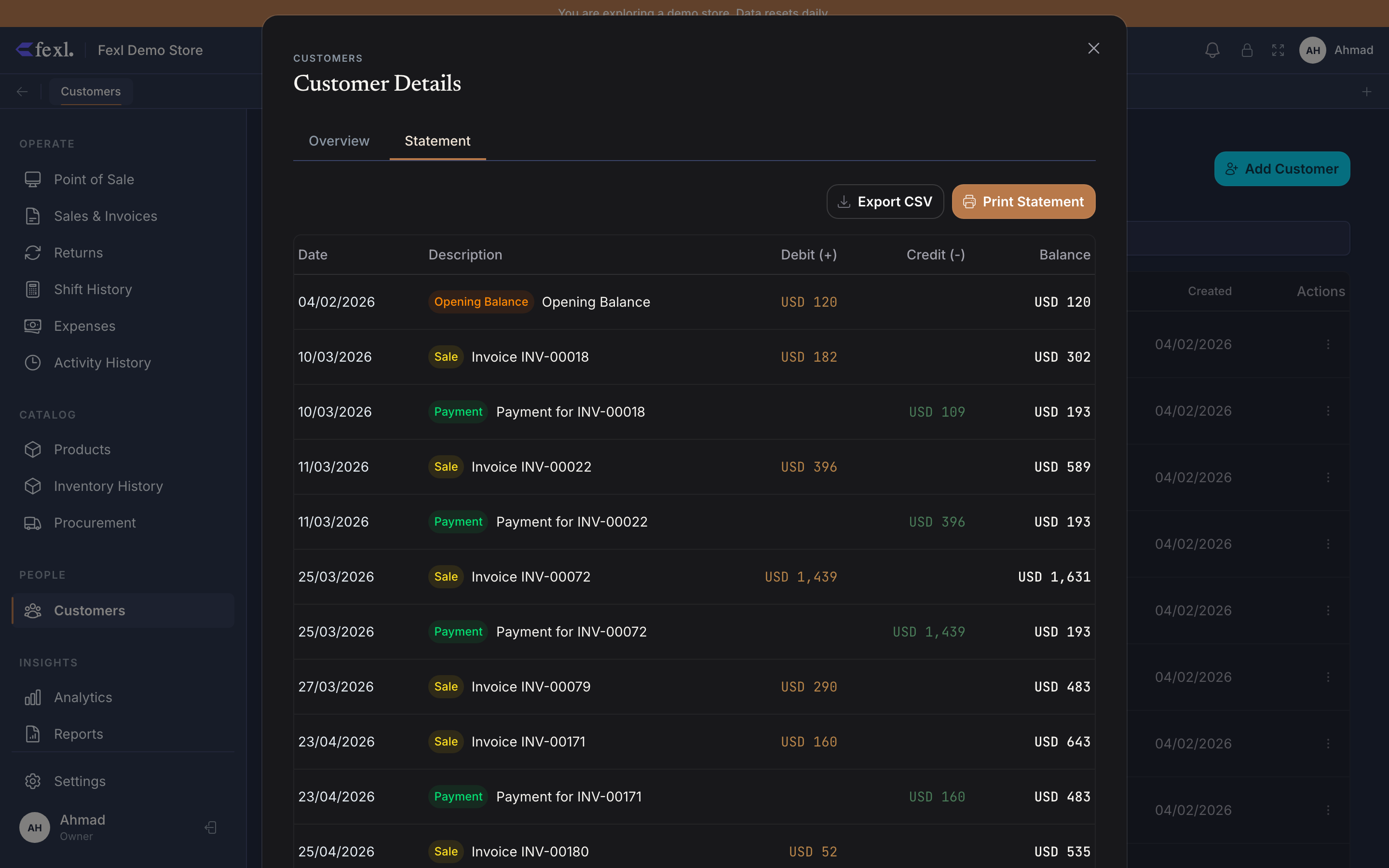
What’s in the ledger
One row per ledger event, sorted chronologically (oldest first by default — togglable). Each row carries:
- Date — event timestamp.
- Type — Invoice, Pay debt, Credit refund, Withdraw credit, Use credit on sale, Opening balance.
- Reference — invoice number, return ID, or transaction ID, linked to the source record.
- Debit — what added to the customer’s debt OR drained their credit. Increases what they owe.
- Credit — what reduced their debt OR added to their credit. Decreases what they owe.
- Running balance — net balance after this event. Positive = customer owes you. Negative = you owe customer.
The running balance column is the one to read — it’s recomputed top-to-bottom from the customer’s openingBalance, so it always reconciles to the live net on the customer header.
The two columns and the net badge
The header above the ledger shows the same three numbers used everywhere customer-facing:
- Debt (gross) —
balancefield. Sum ofamountOwedacross non-cancelled invoices, plusopeningBalance. - Store credit —
creditBalancefield. Sum ofcustomer_credit_transactions(credit minus withdrawal minus usage), floored at zero. - Net balance badge —
balance − creditBalance, color-coded:- Yellow —
Owes <amount>: positive net, customer owes you. - Cyan —
Credit <amount>: negative net, you owe customer. - No badge — square, both columns at zero.
- Yellow —
Same colours show up on the customer list, the POS customer chip, and the printed statement footer. One visual language wherever the financial state is rendered.
Printing and exporting
Three actions on the statement toolbar:
Print A4
Renders the statement through the same template engine as invoices. Uses the active A4 template for header/footer/branding, but with the statement table replacing the invoice items table. The “Powered by Fexl by eSTATION” footer applies here too.
Save as PDF
Same render as Print, written to disk instead of pushed to a printer. Useful for emailing the customer their statement.
Export CSV
Raw ledger data — date, type, reference, debit, credit, running balance — for spreadsheet reconciliation. No branding, no formatting, just the numbers.
Common scenarios
A customer disputes their debt. Print the statement filtered to the dispute period. The running balance walks them through every event: each invoice line, each payment, each refund. No interpretation needed — the column adds up to the badge.
Year-end reconciliation. Export every customer’s statement as CSV, sum the closing running balances, compare to the trial balance’s 1100 debit and 2100 credit. The two should agree to the cent (they always will — both sides are derived from the same customer_credit_transactions and invoices.amount_owed ledgers).
Customer migration. Set the customer’s openingBalance at create-time to represent legacy debt. The statement opens with that opening row and ages it from the customer’s createdAt for AR Aging — clean cutover.