

User Activity
The User Activity report is the per-user audit trail. Every action a cashier or manager took — invoices rung, refunds processed, expenses logged, debt collected, stock adjusted — in one chronological log, filterable by user and date range, exported to Excel for the accountant.
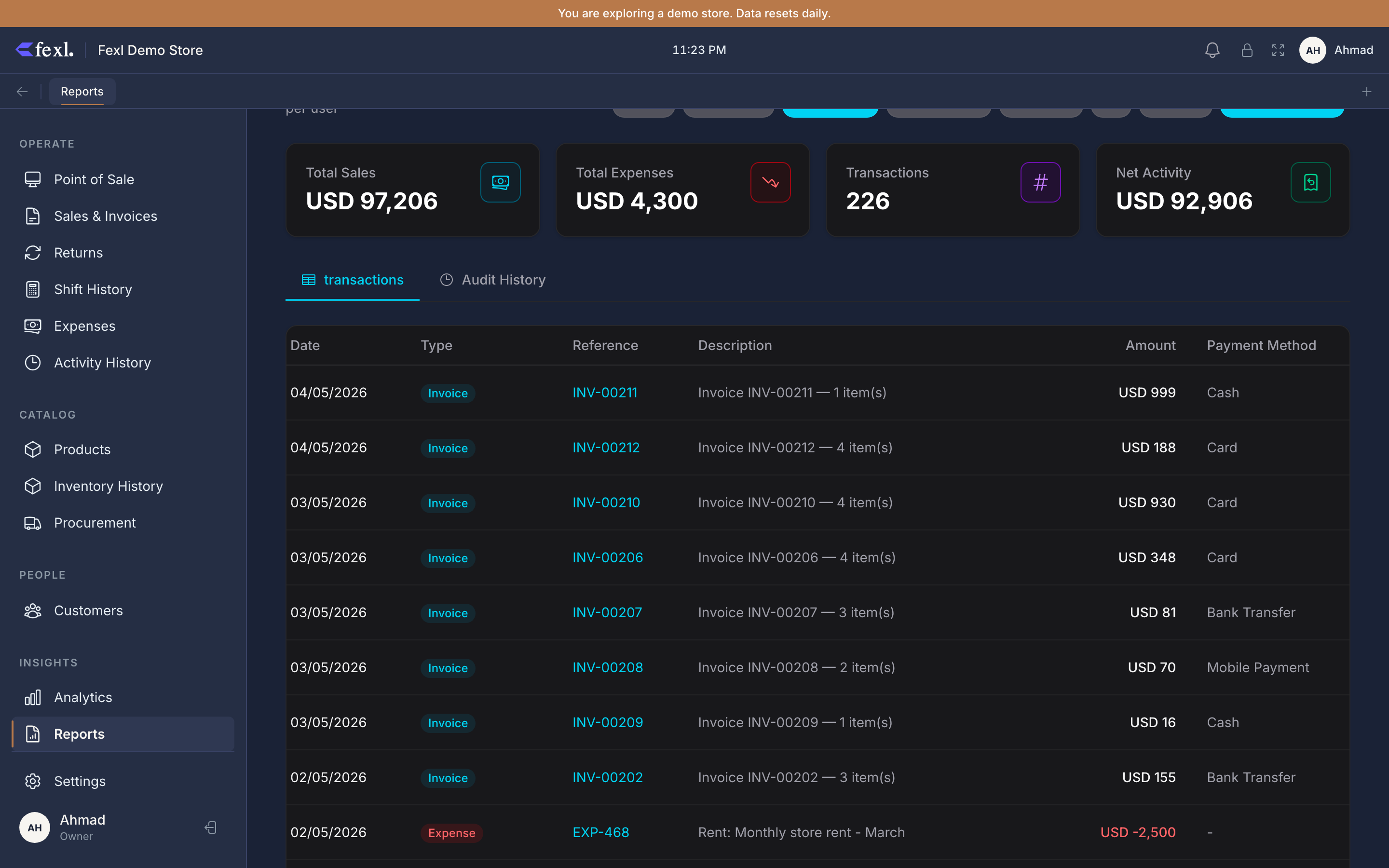
What’s on the report
Two stacked views, both filtered by the same date range and user filter:
Per-user summary
One row per user with totals for the period:
- Invoices rung — count + total revenue.
- Refunds processed — count + total refunded.
- Expenses entered — count + total expense amount.
- Debt payments — count + total collected from customers.
- Stock adjustments — count of
inventory_transactionsrows withsource='manual_restock'orsource='stocktake'attributed to this user.
The numbers reconcile to the same JEs the P&L and Cash Drawer Report read — there’s no parallel activity log; this view is journal_entries and the per-flow tables grouped by user_id.
Activity log
One row per action below the summary. Columns:
- Time — the action timestamp.
- User — who did it.
- Type — Invoice, Refund, Expense, Debt Payment, Stock Adjustment, Login, Logout.
- Reference — invoice number, expense ID, etc.
- Amount — for monetary actions; blank for login/logout.
- Details — short description (customer name on an invoice, expense category, etc.).
Click a row to land on the source document — invoice, expense, return.
Login and logout entries
Login and logout events come from user_sessions (or the auth log on cloud builds). They land in the activity log alongside business actions, so a manager can read a row sequence and confirm that a refund happened while the user was logged in — not from a session left open on a counter terminal.
The auto-lock feature posts a logout event at lock time, not when the user manually clicks logout. So a 5-hour gap between a sale and the next sale by the same user, with a logout-at-N+10min and a login-at-N+5h in the gap, is exactly the auto-lock kicking in.
Filters
- Date range — Today / Week / Month / Quarter / Year / Custom. Default is This Month.
- User — narrow to one user. The summary section disappears (only one row would be left) and the activity log filters down.
- Action type — limit to one of the categories above.
Excel export
The export honours the active filters — what’s on screen is what’s in the file. The summary section appears as a top block in the workbook; the activity log follows in a second sheet.
Audit use cases
A few common questions this report answers cleanly:
- “Who processed this refund?” — search the invoice number in the Reference column; the User column on the matching row is the answer.
- “Was anyone logged in when the variance happened?” — filter by the cashier and the shift’s date range; scan the login / logout pair to confirm the session was active.
- “How many sales did Ahmed close last week?” — filter user = Ahmed, range = Last Week, action type = Invoice, read the count from the summary.
- “Why does the cash drawer feel light?” — cross-check this report’s refund count with the Cash Drawer Report’s refund total; if they disagree, a refund was logged that didn’t actually move cash (or vice versa).
Permissions
Activity for a given user is visible to anyone with the reports:view permission. The action of exporting the report is gated behind the reports:export permission separately — some tenants leave that off for non-managers so the at-a-glance view is shared but the file leaving the device requires sign-off.