

Inventory settings
The Inventory tab under Settings holds the operational defaults: the number that decides when a product is “low,” the toggle that decides whether defective returns get their own bucket, and the scanner field the POS matches barcodes against.
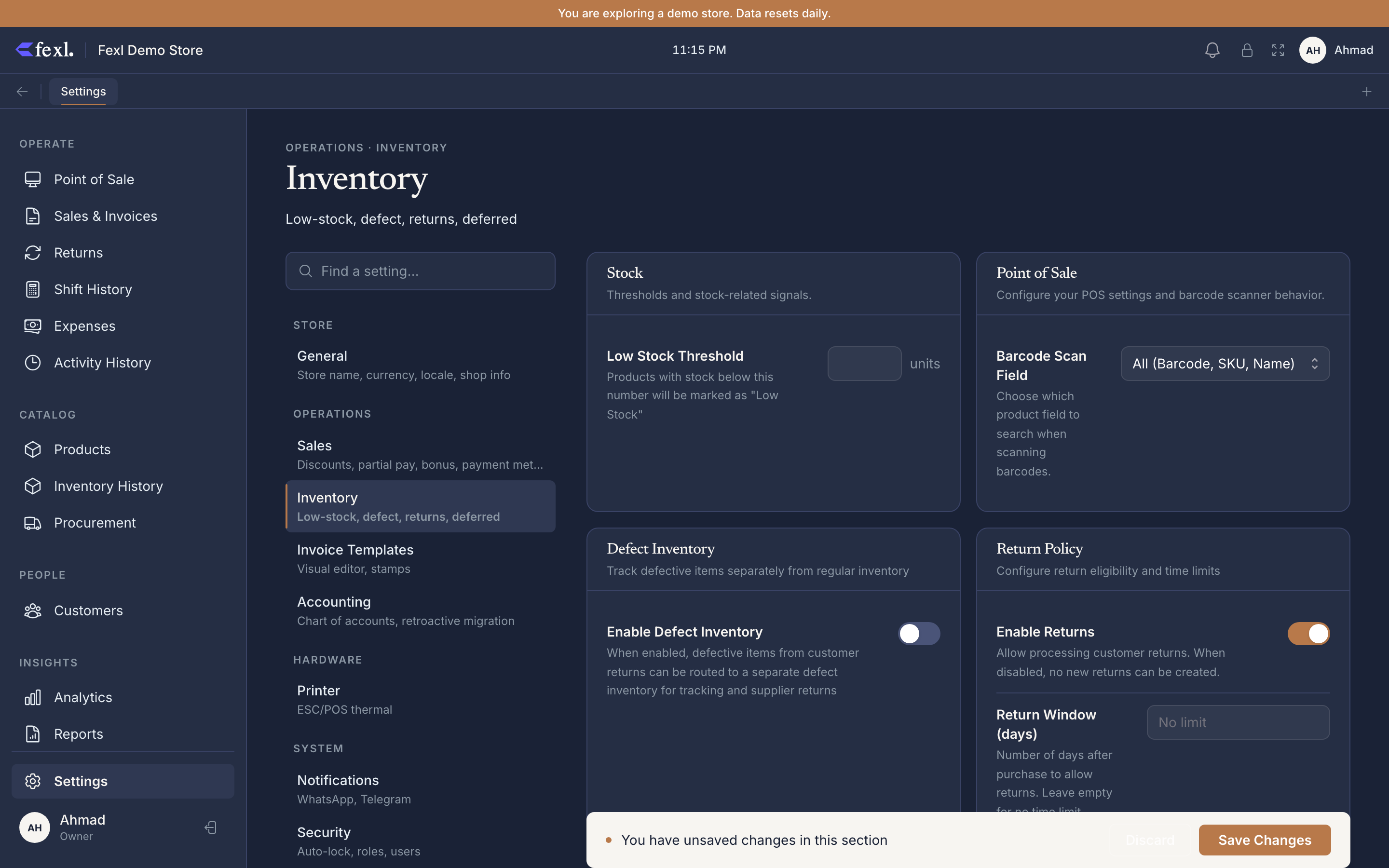
Low Stock Threshold
The first field. Any product whose on-hand quantity is at or below this number gets the yellow Low Stock badge on the Inventory page, the Products page, and the dashboard low-stock tile. Default is 10, range is 1 to 1000, and the description reads: “Products with stock below this number will be marked as Low Stock.”
It’s tenant-level — every device picks it up on the next sync. There’s no UI yet for a per-product override; the schema is ready (the inventory table has a low_stock_threshold column) but the editor isn’t exposed. Pick a global value that errs on the side of warning earlier. Full mechanics live on the low-stock alerts page.
Barcode Scan Field
Under the POS sub-section, this dropdown controls which product field the background scanner matches against: All fields, Barcode, SKU, or Name. “All” is the safest default; narrowing it speeds up matches on large catalogues.
Defect Inventory
Toggle Enable Defect Inventory to route defective items from the return wizard into a separate tracked bucket. With it on, the wizard’s defect disposition lands items on the Defect Inventory page for bulk-routing to a supplier. With it off, defective items fall back to the dispose disposition — written off in the journal entry, not parked for follow-up.
Related
- Low-stock alerts — what the threshold actually triggers
- Defect inventory — the page the toggle unlocks
- Batch & expiry tracking — per-product, not a tenant flag
- Handoff gaps — shift-to-shift gap detection (shift settings, not inventory)