

Product variants — size × colour × style
A variable product is a single product line that sells in more than one shape: a t-shirt that comes in S/M/L × Red/Blue, a pair of shoes that comes in five sizes, a candle that comes in four scents. The parent product holds the name, category, and barcode rules; each variant carries its own SKU, price, cost, and stock count. The Inventory page shows the parent’s rolled-up total; the FIFO engine, the POS, and every report drill down to per-variant.
When to use variants
Use them when the variation is a selling decision, not a stock decision. If the customer at the till has to pick between Red and Blue, that’s a variant. If your back-room differentiates Red from Blue purely for warehouse tidiness but they ring up identically, that’s not — split them into two simple products instead, or live with one product and a colour note on the invoice.
Variants are the wrong tool when:
- Each unit carries a unique identifier (IMEI, serial). Use Serialized tracking — variants give you classes of units, not unique units.
- Variation is by lot with shared expiry. Use Batch tracking — batches are about freshness, variants are about catalogue choice.
Setting up a variable product
Create the parent product
Open Products → New Product. Name, category, condition, base selling price. Set Structure to Variable.
Define the option axes
Add one or more option groups (e.g. Size with values S, M, L, XL, and Colour with values Red, Blue, Black). Fexl Lite generates one variant per combination — 4 sizes × 3 colours = 12 variants.
Edit per-variant SKU, price, cost
Each generated variant inherits the parent’s price as a starting point. Edit any individual variant’s SKU, price, or initial cost in the variant manager. Variants you don’t intend to stock can be deleted before save.
Save and restock
Saving creates the parent + all its variants. Use Restock on the product row — the dialog requires you to pick which variant before entering quantity and cost. Each variant maintains its own FIFO layer chain.
What changes at the till
When a cashier scans or taps a variable product on the POS, the variant picker opens before the unit hits the cart — a list of every variant with its current price, on-hand count, and any out-of-stock greying. The cashier picks one; that specific variant goes into the cart at the variant’s price, and the receipt prints the variant attributes under the line item.
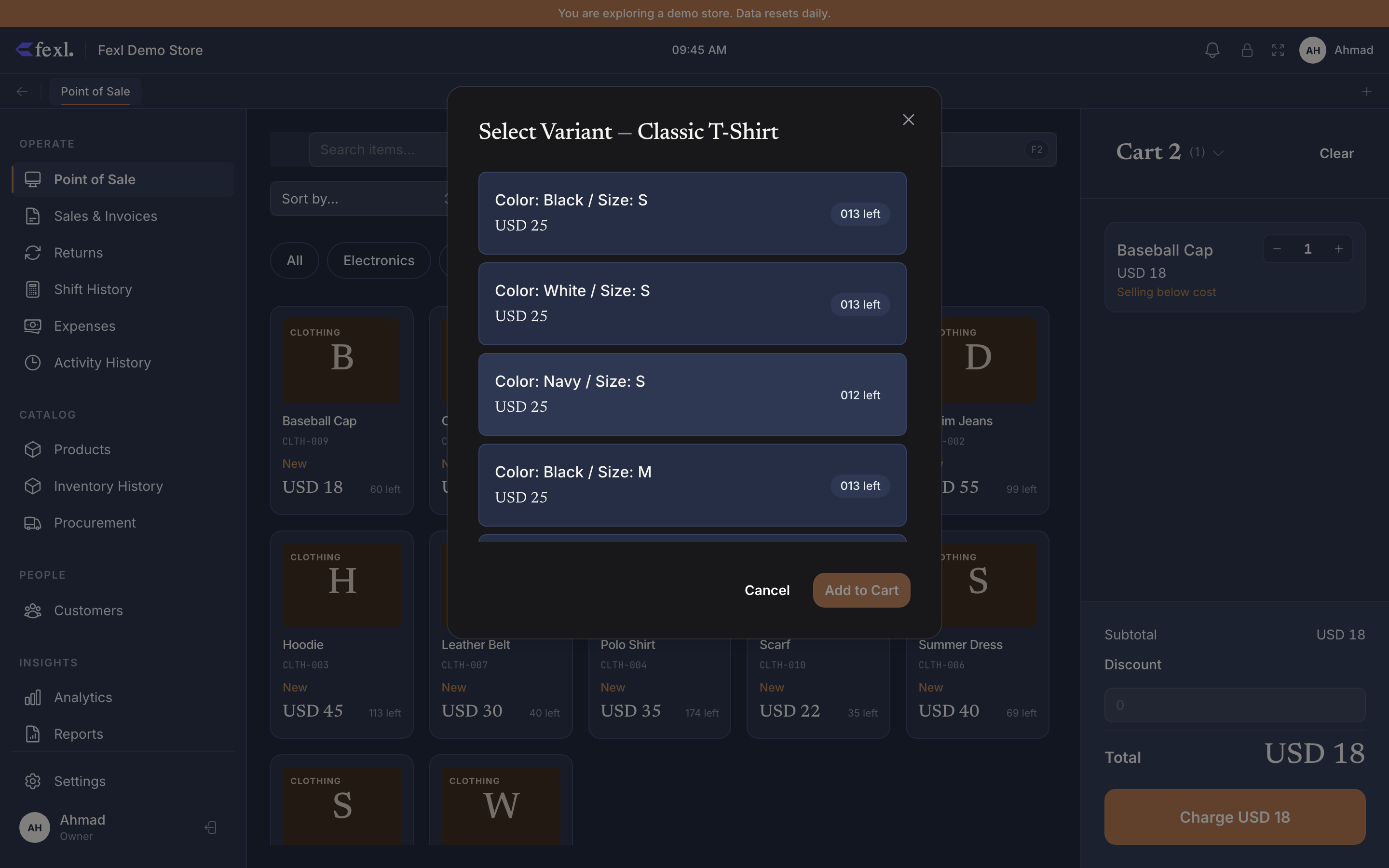
You can scan a variant’s barcode directly to skip the picker. Each variant has its own barcode field, generated alongside the parent if you used Generate Barcode.
What changes for inventory & reports
- Inventory page — one row per parent, with the Stock Level column showing the rolled-up total across all variants. The status badge (In Stock / Low Stock / Out of Stock) compares the rolled-up total to the global threshold; per-variant breakdown is on the product’s history page.
- Restock — variant picker is required. Each restock writes one FIFO ingress row scoped to the (product, variant) pair. Restocking the “Red / Large” variant doesn’t affect “Blue / Small”.
- POS — variant picker is required for every add (unless you scanned a variant’s own barcode).
- FIFO walk —
lineCOGSresolves layers per (product, variant). Sales of one variant drain only that variant’s layers. - Inventory Moves report — each line is variant-scoped, with the variant attributes stamped on the row.
- Inventory Valuation — values each variant separately, then sums to the parent for the rolled-up total.
Reassign Unassigned
If you upgraded an older Quantity product to Variable, or if a quirk of legacy import left you with stock booked against a null variant on a variable product, a Reassign Unassigned menu action appears on the Inventory row. Clicking it opens a dialog where you pick which variant the orphaned stock should belong to. The action is hidden when there’s nothing to reassign.
Related
Simple products
The default mode — when one variant is enough.
Restock with a variant
Variant picker is mandatory on the dialog.
Tracking modes
Variants compose with all three modes — but tread carefully on Serialized.
Inventory history
Per-variant timeline with attribute badges on every move.