

Printer settings
The Printer tab points Fexl Lite at the thermal receipt printer attached to this device. One printer per device, configured here, used everywhere the app prints a receipt — POS post-checkout, the Last Sale reprint, the Invoices detail page, the cash drawer’s open-shift slip.
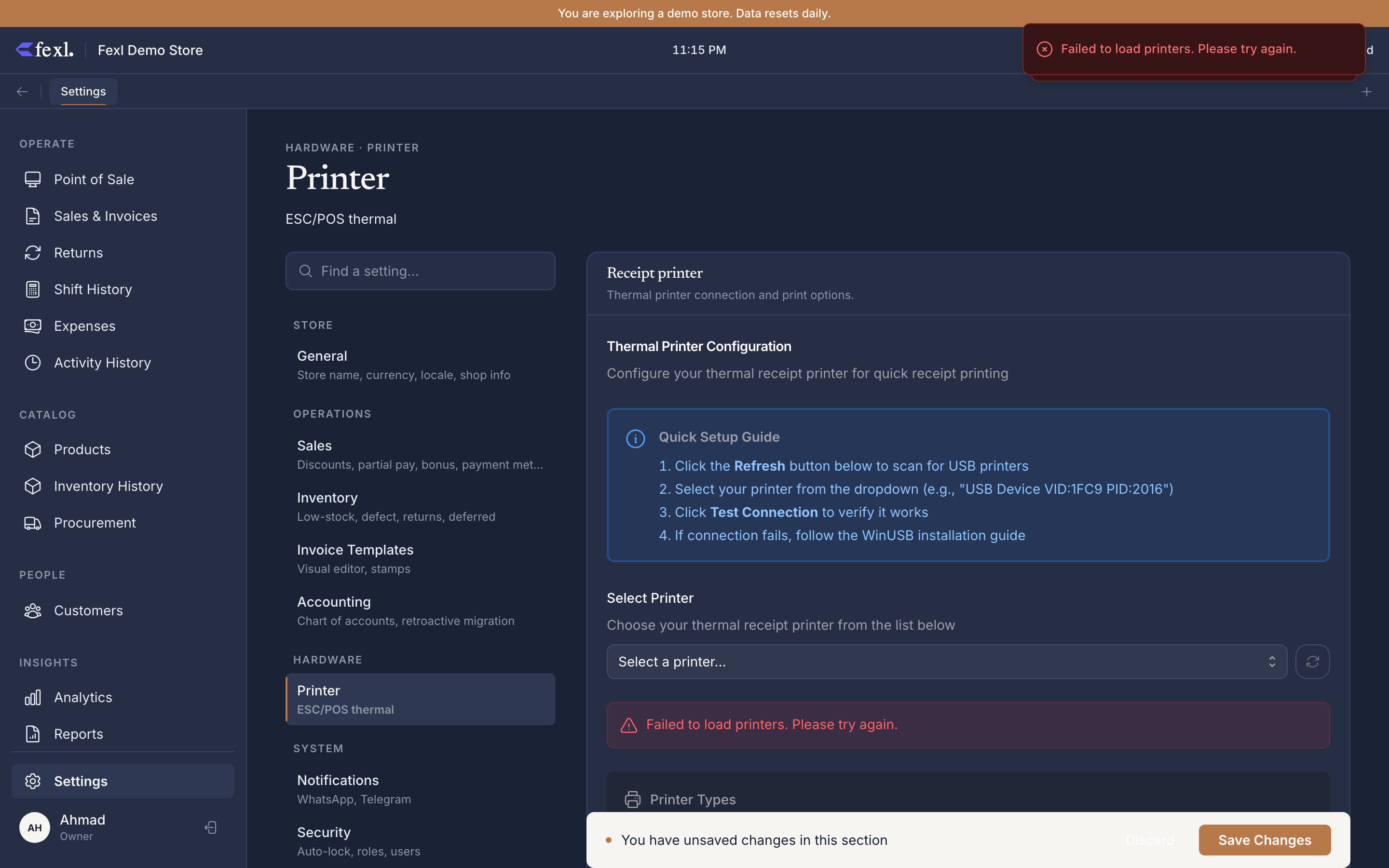
Printer detection
When the tab opens, the desktop polls the OS for connected printers and shows three buckets:
- USB Printers — auto-detected via the Tauri
usbfeature. Each entry shows the vendor:product ID and the manufacturer / product name reported by the device. Click a row to select it; the path becomesusb:VENDOR:PRODUCT(e.g.usb:04b8:0e15). - Network Printer — a placeholder entry; click to expose an
IP:PORTinput for printers on the same LAN. Port9100is the de-facto standard for ESC/POS over network. - OS Default Printer — a fallback that routes through the OS print stack (CUPS on macOS / Linux, the Windows default printer). Plain text only — no ESC/POS formatting, no cut command. Only useful when nothing else is wired up.
Pick a row, hit Save, and the path is stamped against this device — every print from this device goes there until you change it.
Setting up a USB printer
Plug in and power on
USB cable directly to the desktop. Most thermal printers don’t need vendor drivers — Fexl Lite talks raw ESC/POS over USB.
Pick the printer in Settings → Printer
The USB Printers list lights up with whatever’s connected. Tap your row. The path field updates to usb:VENDOR:PRODUCT. Save.
Hit Test Print
A short test receipt prints — store name, a few placeholder lines, a barcode. If the cut line fires at the bottom, you’re done.
Setting up a network printer
For shared printers in a back-office or warehouse setup. Pin the printer’s IP statically in your router so the path doesn’t drift. Pick Network Printer, type 192.168.1.50:9100 (or whatever the printer reports), save, test-print.
Default template
A dropdown of the receipt templates from Invoice Templates. The chosen one is what POS prints by default after every checkout — the cashier doesn’t get a “which template?” prompt unless you configure one. Most shops pick Compact here even if their A4 active template is Modern; thermal paper is narrow.
Auto-cut
A toggle. On sends the cut command after every receipt; off holds the paper for tear-off. Set off if your model doesn’t have a cutter (some cheap printers ignore the cut command but still print fine), or you tear receipts by hand and don’t want the cutter to wear out.
Cash drawer kick
A toggle plus an optional kick code. When on, every cash sale fires a pulse out the printer’s RJ-12 cash-drawer port to pop the till. The kick code is a hexadecimal byte sequence (1B 70 00 32 FA is the most common); leave the field blank to use the ESC/POS default. Different drawer / printer pairings sometimes need a tweaked code — check your drawer’s manual.
Test print
The single most useful button on the tab. Re-runs the same short receipt the post-checkout flow runs, with the current path, default template, auto-cut, and kick settings. Use it after every config change before going back to the till.
Per-device, not per-tenant
The printer path is stored against this device, not the tenant. A two-tablet shop with one printer per tablet has two different usb:... paths in the same tenant — neither overrides the other. Cloud sync deliberately ignores the printer field for that reason.
Related
ESC/POS deep dive
Path patterns, code pages, character-set quirks, and the symptom-to-fix table for printing issues.
Receipt templates
The default template dropdown above feeds from the gallery here.
Printing troubleshooting
Blank receipts, garbled characters, missing cut command — symptom-to-fix.
Payment terminal
The other Tauri-only hardware tab — Nebula card terminal config.