

Full, partial, and split payments
Every checkout in Fexl Lite picks one of three payment types: full (the customer pays the whole amount in one method), partial (the customer pays some now and leaves the rest on their tab), or split (the customer pays the whole amount across two or more methods). The Checkout dialog enforces a different validation gate for each, and they post different journal entries — but they all share the same overall shape: pick the type, fill in the amounts, hit Complete Sale.
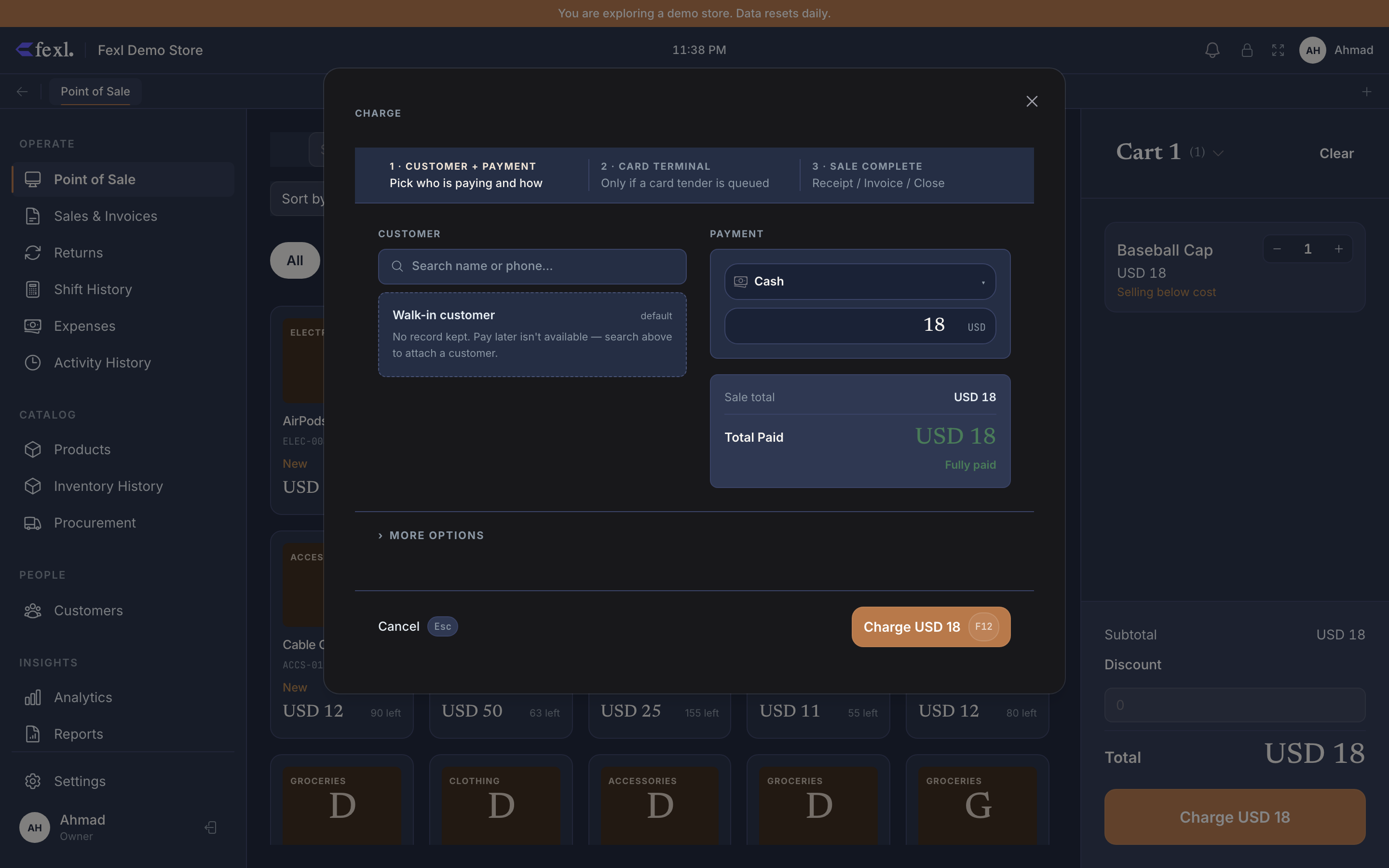
Full payment
The default. Customer pays the entire invoice total in a single payment method.
Pick a payment method
Tap one of the configured methods (cash, card, bank transfer, mobile wallet — whatever you set in Sales settings). The amount field auto-fills with the invoice total.
On a cash payment, optionally enter the amount tendered
If the customer hands you a round number bigger than the total, type it into the amount field. The change-due line appears underneath. Card and transfer payments don’t show change-due — the customer pays exactly the total.
Complete Sale
F9 or click the button. The invoice posts with payment_type='full'.
What posts: DR cash sub-account or DR Bank (1020) for the full gross amount; CR Sales Revenue (4010) net of VAT, plus CR VAT Payable (2020) if applicable; the COGS leg posts separately at FIFO cost.
Partial payment
The customer pays part of the total now and leaves the rest as debt against their account. Use it for “I’ll pay £30 now and the rest at the end of the month” or “Mr Hassan’s running tab.”
Partial payments must be enabled in Settings → Sales. They also require an attached customer — there’s no anonymous partial payment, because the unpaid amount has to land on someone’s tab.
Attach a customer to the cart
Tap the customer chip in the cart header and pick or create a customer. Without a customer, the Partial tab is greyed out.
Open Checkout, switch to the Partial tab
The Partial tab appears next to Full when both the setting is on and a customer is attached.
Enter the amount paid
Type the cash/card amount the customer is handing over now. The remaining balance (“Unpaid: £70.00”) shows live below — that’s what’ll land on the customer’s tab.
Setting paid = 0 is a special case: this is Pay Later. The customer walks out without paying anything now; the entire invoice total becomes debt. Useful for credit-customer / COD flows. The payment-method requirement is relaxed for Pay Later — you don’t need to pick a method when no money moves.
Pick the payment method (if paid > 0)
Cash, card, transfer — whatever method the cash leg lands on. Skipped when paid = 0 (Pay Later).
Complete Sale
The invoice posts with payment_type='partial', paid_amount = what they paid, and amount_owed = total − paid. The customer’s balance (gross debt) ticks up by amount_owed.
What posts: Same revenue / VAT / COGS pattern as a full payment, plus the unpaid portion lands as DR Accounts Receivable (1100) instead of cash. The customer’s running AR balance shows on the debt-and-credit page; the AR Aging report ages it from the invoice date.
See Pay Later & COD for the zero-paid variant in detail.
Split payment
The customer pays the whole amount, but across two or more methods. “Half on card, half in cash.” “Cash plus mobile money plus a £10 voucher.”
Split payments must be enabled in Settings → Sales. They settle the invoice in full — there’s no “split with leftover” option (use partial for that).
Open Checkout, switch to the Split tab
Above the amount field, the Split tab shows when the setting is on. There’s no customer requirement.
Add split rows
Each row is (method, amount). Click Add Method to insert another row. Adjust amounts until the total matches the invoice exactly.
The dialog shows a live Σ split / Total ratio and a coloured chip:
- Green ✓ — sums match. Complete Sale unlocks.
- Amber Σ < total — short by
(total − Σ). Add or top up a method. - Amber Σ > total — overpaid by
(Σ − total). The change-due display shows the excess; required to be paid out of the cash split row specifically, never out of a card row (you can’t give change on a card — terminals don’t refund spontaneously).
Confirm
Complete Sale. The invoice posts with payment_type='split', paid_amount = total, and a split_payments array on the row carrying every (method, amount, paymentMethodId) triple.
What posts: One JE per invoice with multiple cash/bank/wallet legs. Each split row writes its own DR line at the right account code (cash sub-account for cash, 1020 for card, 1030 for mobile money), summing to the gross paid. The CR side (revenue, VAT, COGS / inventory) is the same as a full or partial payment — only the DR cash leg fans out across rows.
Implicit COD fallback
If you complete a sale without picking a payment type, Fexl Lite falls back to partial with paid = 0 when a customer is attached, treating the whole invoice as a tab. This handles the case where a delivery driver hands over goods first and collects later — no explicit checkout step from the cashier. #9 v1.6.100 made the fallback explicit and surfaced an “Implicit COD” status badge on the invoice list so you can spot these without trawling JSON.
Validation rules at a glance
| Rule | Where it fires |
|---|---|
| Partial requires the setting and an attached customer | Tab is hidden otherwise |
Partial paid must be < total | Toast on Complete |
| Partial with paid = 0 (Pay Later) accepts no payment method | Validation relaxed |
Split requires Σ split == total (exact) | Complete button disabled |
| Split overpayment must come out of cash split | Toast on Complete |
| Card payments can’t give cash change | Implicit on the cash-only-change rule |
| Comp invoices skip every payment validation | Different flow entirely |
Related
- Pay Later & COD — the partial-with-paid=0 path
- Debt & credit — what partial payments do to the customer’s running balance
- Sales settings — where partial and split toggles live
- Print A4 / Thermal — split rows on the receipt
- Multi-cart & holds — pause a sale before checkout
- Apply a refund — refunding a split-paid invoice