

Invoice templates
The Invoice Templates tab controls how a printed A4 invoice or thermal receipt looks. Four bundled templates ship out of the box — Compact, Minimal, Classic, Modern — plus a visual editor for tweaking logo position, column choice, footer text, and a few branding fields. The live preview re-renders as you type, so you don’t print test invoices to find out the footer wrapped wrong.
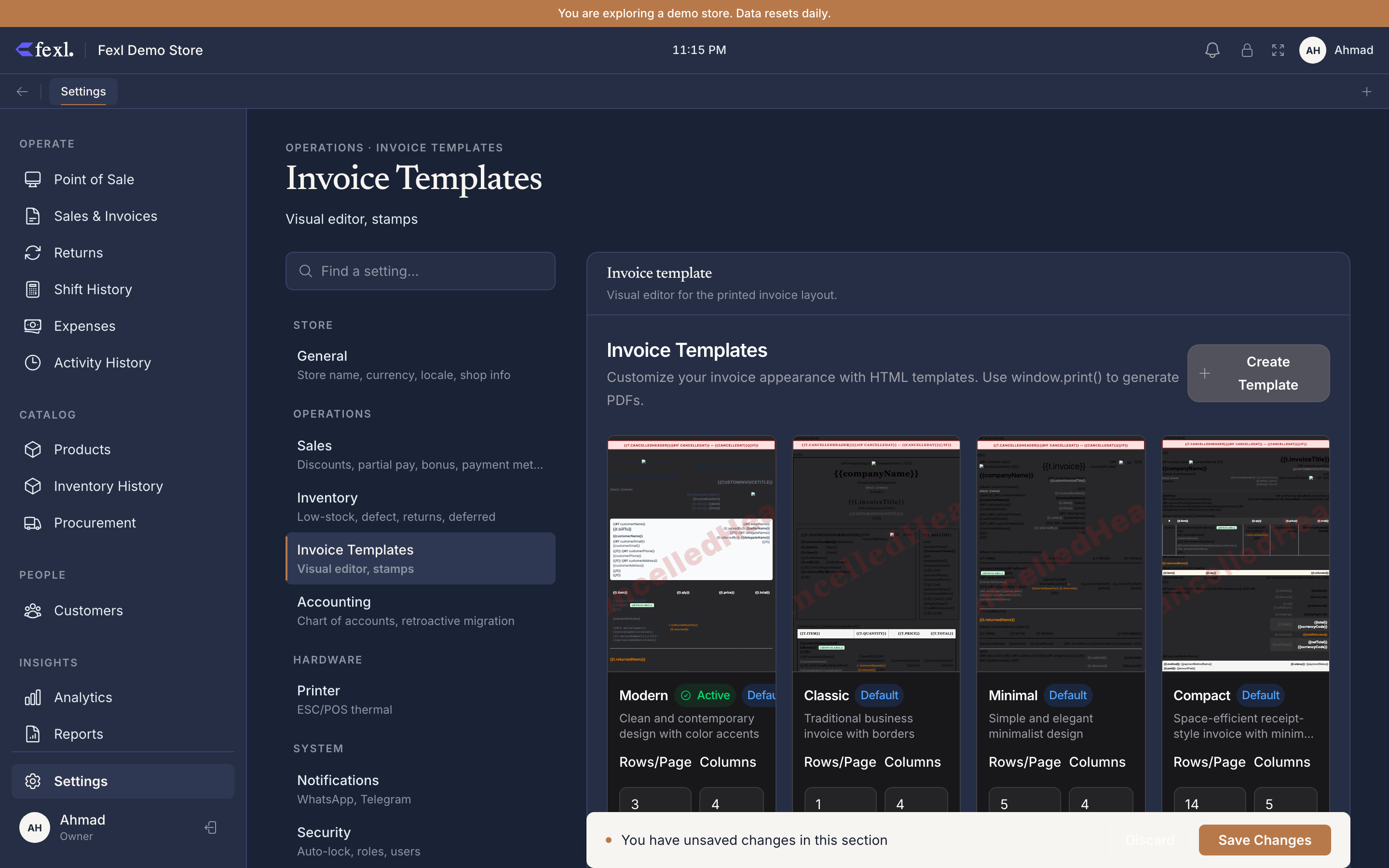
The four bundled templates
Each template is a different opinion on what an invoice should look like. Pick one as your active template — that’s the one POS, the invoice list, and the print-from-detail flow all use until you change it.
| Template | Best for | Look |
|---|---|---|
| Compact | Thermal receipts, dense back-office prints | Single column, small type, no logo. Fits the most rows on one page. |
| Minimal | Modern retail, printed receipts | Generous whitespace, no borders, logo top-left, totals right-aligned. |
| Classic | Legacy / traditional sellers | Bordered table, logo top-centre, footer with VAT no. and signature line. |
| Modern | Branded shops, A4 customer copies | Coloured header strip, logo + name in header, two-column meta block. |
The active template applies to A4 invoice prints. Thermal receipts use a separate ESC/POS layout (see Settings → Printer) — the only Templates field that crosses over is the header lines content (store name, address, custom info), which is sourced from the General tab regardless of template.
Editing a template
Click any template card to open the editor. The left pane is the form; the right pane is a live preview of a sample invoice — same store name, same line items, same currency formatting as your real data, just with placeholder customer / invoice number.
Logo position
Three radios: Top-left, Top-centre, Hidden. Falls back to Hidden if no logo is uploaded on General. Modern’s coloured header strip pins logo and name side by side regardless of this setting — by design.
Columns to print
Tick which line-item columns appear: SKU, Qty, Unit price, Discount, Line total, Variant attributes, Serialised ID (if the line is a serialised product). All on by default; turn off whichever your customers don’t need to see — narrow thermal receipts especially benefit from fewer columns.
Footer text
Free-text block printed below the totals. Common content: return policy line, thank-you message, social handles. Multi-line; respects newlines. Renders identically on every invoice — there is no per-invoice override field, by design.
Watermark and stamps
Optional CANCELLED or PAID watermark that prints diagonal across the page when the invoice is cancelled or fully paid. Plus up to five invoice stamps (small graphics — VAT-registered, ISO-9001, etc.) that print in the footer band. Stamps are uploaded once on the Sales tab and selected per-template here.
Save and set active
Save stores the edits against this template. Set as active makes it the one print buttons reach for. The active template gets a small badge in the gallery.
Custom templates
Click Duplicate on any template card to make an editable copy. Custom templates can be renamed (the original four can’t), saved, set active, and deleted. Useful for shops running two storefronts under one tenant who want subtly different print layouts per till — pair the custom template with a per-device default.
There is no “build from scratch” option. Every custom template starts as a clone of one of the four built-ins. This is deliberate — building a print layout from zero is a job for a designer, not a settings form.
Related
Logo and header lines
Store name, address, phone, custom info — the content that flows into every template’s header.
Thermal receipt printer
The thermal layout is separate; this tab controls A4 PDF only.
Print A4 vs thermal
When to reach for which, and how to choose between them at the till.
Invoice stamps
Where the stamp images come from and how to upload them.