

Low-stock alerts
You don’t notice you’re out until a customer is at the counter — unless Fexl Lite warns you first. The Low Stock Threshold setting is the single number that decides when a product is “low” everywhere in the app: the Inventory page badge, the in-app inventory alert, and any external notification channels you’ve wired up.
The global default
There’s one threshold for the whole store. Any product whose on-hand quantity is at or below it gets the Low Stock badge.
Open Settings → Inventory
Click your store name in the top right, then Settings, then the Inventory tab.
Find Low Stock Threshold
The first field on the tab. The description reads: “Products with stock below this number will be marked as Low Stock.”
Enter a number and save
Pick a value between 1 and 1000. The default is 10. Click Save Settings at the bottom of the tab.
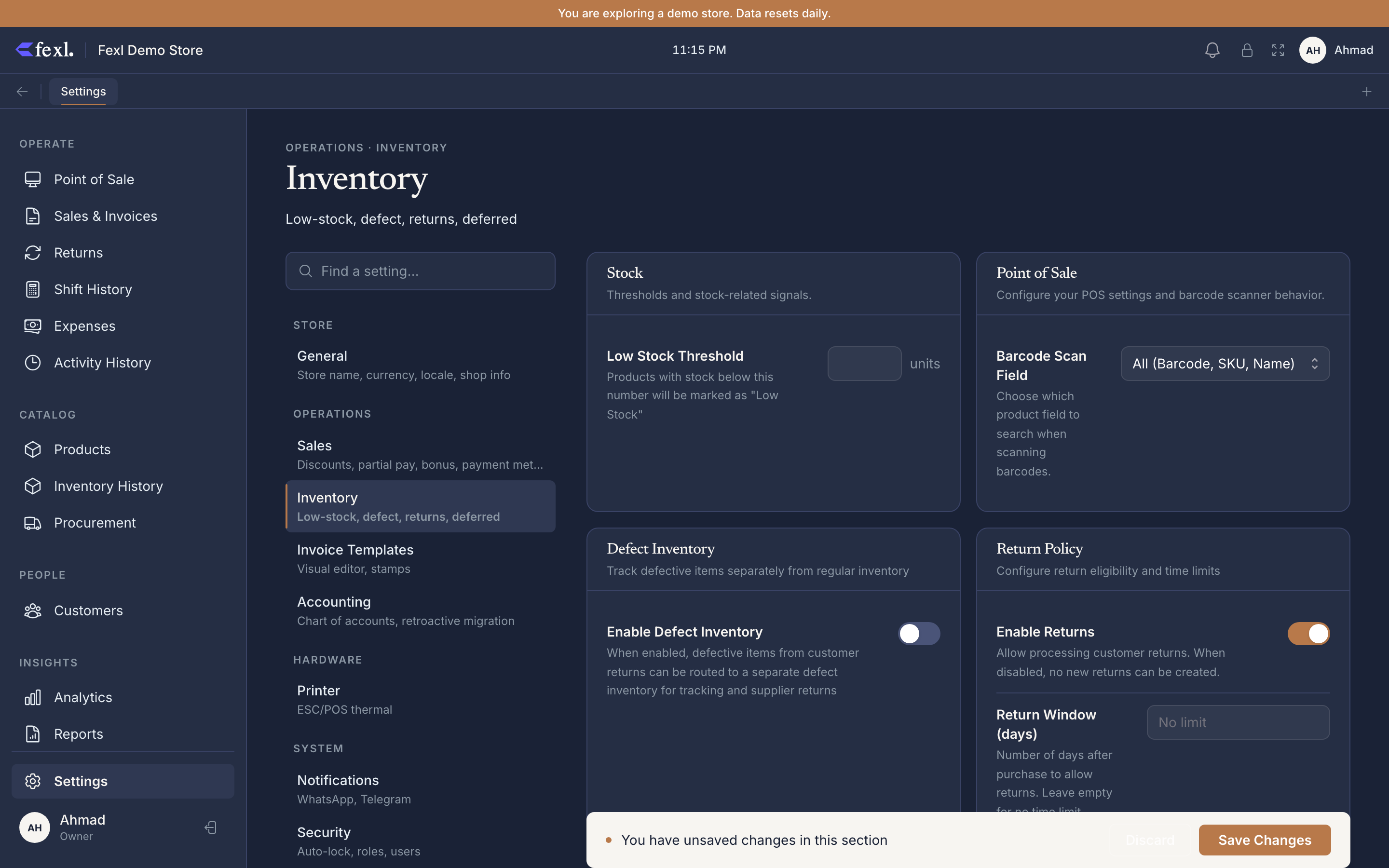
The threshold is a tenant-level setting. Every device on this tenant picks it up on the next sync; it’s not a per-device preference.
Per-product reality
Today there is no UI to set a different threshold for a specific product — the global default is what the Inventory page and Products page both check against. The schema is ready for it (the inventory table has a low_stock_threshold column per record), but the per-product editor isn’t exposed yet.
Where alerts surface
- Inventory page — products at or below the threshold show a yellow Low Stock badge in the Status column. Products at zero get a red Out of Stock badge instead.
- Products page — same yellow Low Stock badge on the stock column, with the quantity rendered in red bold when at or below the threshold.
- In-app notifications — toggle Inventory Alerts under Settings → Notifications → In-App Notifications to receive low-stock, expired-batch, and expiring-item alerts in the app’s notification center.
- Telegram / WhatsApp — connect either channel and inventory alerts will route there too. See Telegram notifications and WhatsApp alerts.
Batch tracking
Related
- Tracking modes — quantity, serialised, batch
- Batch & expiry tracking — the per-batch expiry warning is separate from the low-stock threshold
- Settings → Inventory — the full Inventory settings tab
- Telegram notifications — route inventory alerts to a Telegram chat
- WhatsApp alerts — route inventory alerts to WhatsApp