

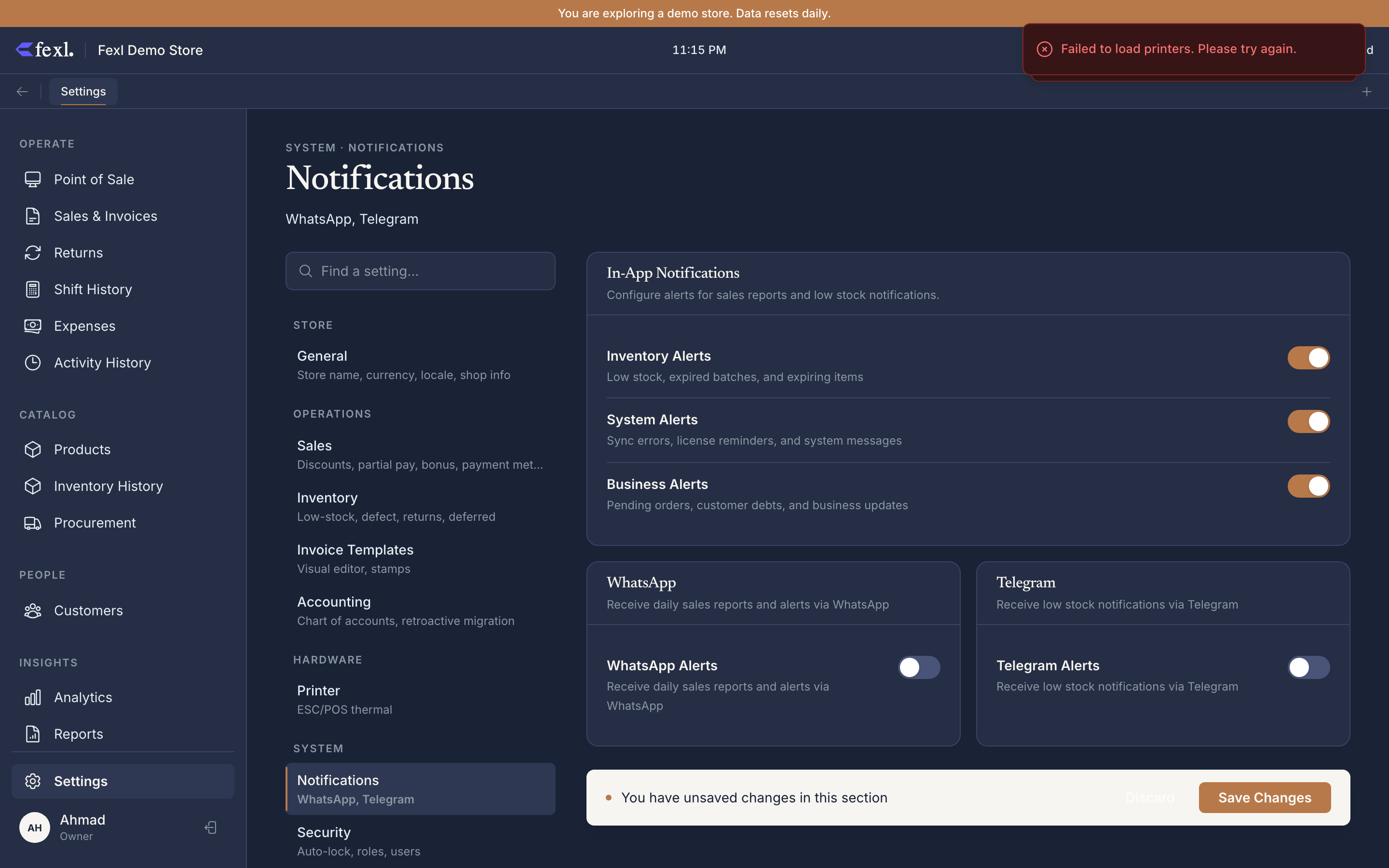
Notifications settings
The Notifications tab pushes events from inside Fexl Lite out to your phone. Two channels — Telegram and WhatsApp — and a checklist of event types each can subscribe to. Owners typically set this up once on day one so they hear about a low-stock SKU or a big sale without having to open the app.
How notifications fire
A small worker on the server watches a queue of business events: an invoice posting above the configured big-sale threshold, a product crossing its low-stock line, the end-of-day cash-drawer close. When an event matches an enabled channel + event subscription, the worker formats a short message and POSTs it through the Telegram Bot API or the WhatsApp Business Cloud API.
Messages are short by design — single line, with a deep link back into the app if you want details. Nothing customer-identifying ships in the body; it’s a heads-up, not a report.
Telegram
The cheapest channel: free, instant, and works with a regular bot you create in two minutes.
Create a Telegram bot
Open Telegram, message @BotFather, run /newbot. Give it a name and a username ending in bot. BotFather replies with a bot token that looks like 123456:ABC-DEF…. Copy it.
Add the bot to a channel or chat
Create a private channel (or use a group), add your new bot as an admin with Post Messages permission. Send any message in the channel, then visit https://api.telegram.org/bot<TOKEN>/getUpdates to find the chat’s numeric chat ID (looks like -1001234567890).
Paste both into Settings → Notifications → Telegram
Toggle Enable Telegram, paste the bot token and the chat ID, click Test message. A message lands in the channel within a second or two. If not, see the deep dive at Telegram notifications.
The serious-business channel: phone-number based, costs per message, but works for staff and customers who don’t use Telegram.
WhatsApp routes through the WhatsApp Business Cloud API (Meta’s hosted endpoint). You’ll need a verified business phone number and an API access token from the Meta Business Manager. The Notifications tab takes the phone number ID and access token — paste them in, run the test, and you’re live.
WhatsApp’s policy requires templated messages for outbound notifications. Fexl Lite ships three pre-approved templates (low stock, big sale, daily summary); custom templates need to be approved by Meta before they’ll deliver. See WhatsApp alerts for the onboarding walkthrough and the quota math.
Per-event subscriptions
Three event types ship today, independently subscribable per channel:
- Low Stock — fires when a product’s stock crosses the low stock threshold set on the Inventory tab. One message per product per day; doesn’t spam if the same product crosses and uncrosses.
- Big Sale — fires when an invoice’s total exceeds a configurable threshold (default
$500equivalent). The message includes the invoice number, total, and customer name. - Daily Summary — fires once at the end of the configured business day (Inventory tab → Business Day Start Hour). Includes today’s revenue, invoice count, top product, cash variance.
Tick the events you want under each enabled channel. Off by default — every shop opts in to what they actually want.
Related
Telegram notifications deep dive
Bot setup, channel ID discovery, formatting, troubleshooting.
WhatsApp alerts deep dive
Business API onboarding, message templates, quota math.
Low-stock threshold
The number that drives the low-stock notification subscription.
Time zone and currency
Daily summaries respect the time zone and currency formatting set on General.