

Login & PIN
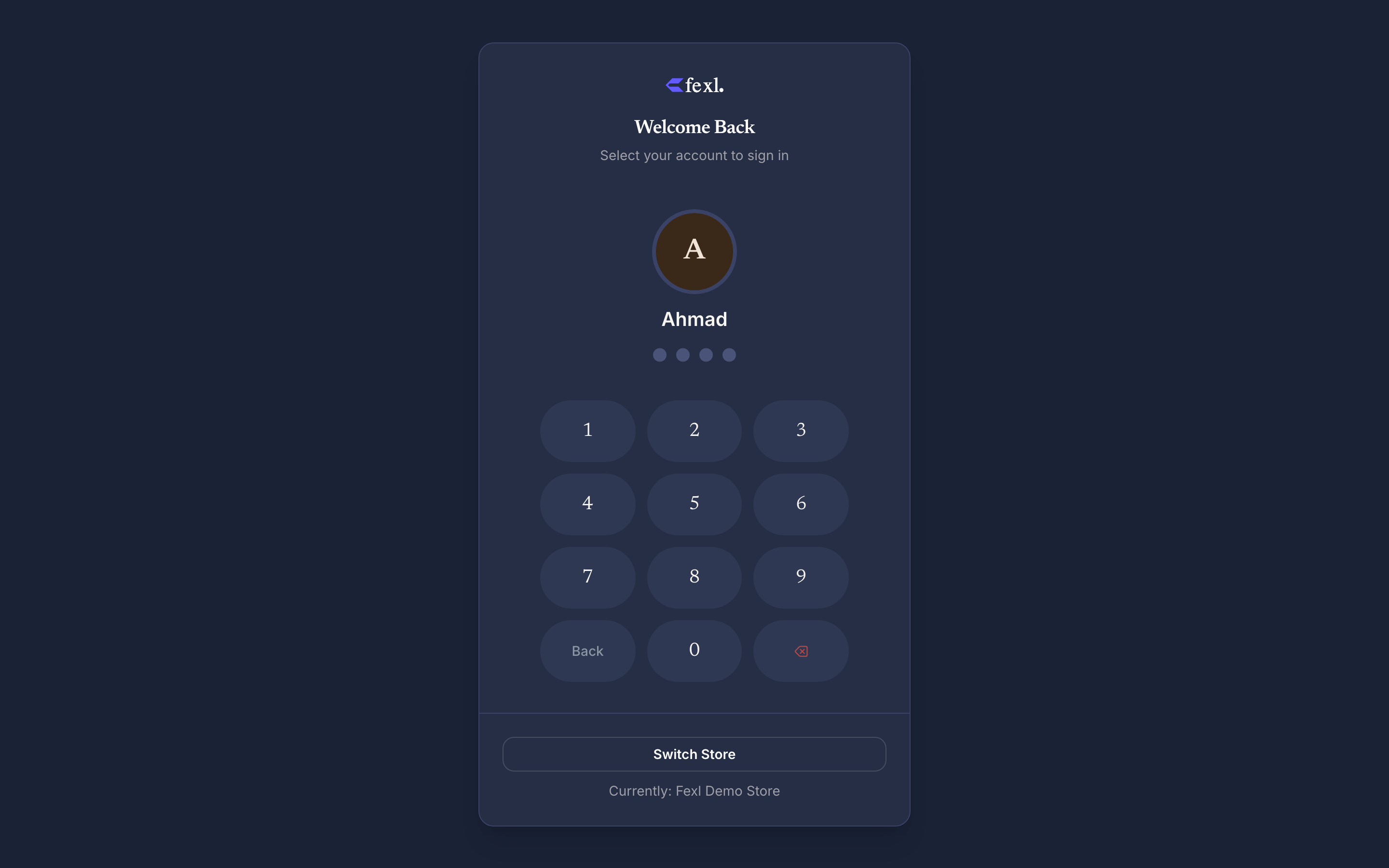
Fexl Lite uses PIN-based auth. Each user has a 4–6 digit PIN; the screen auto-locks after a configurable inactivity timeout. This page covers what to do when the PIN doesn’t work, the screen won’t unlock, or you can’t remember which user you are.
Error-message → fix table
”PIN incorrect”
Cause — the digits don’t match the stored PIN for the selected user. Fix — check that you picked the right user (the avatar grid often has multiple cashiers with similar names). PINs are case-numeric and don’t have a “show” toggle by design — there’s no way to see what you’re typing. Try again carefully.
”Too many attempts. Try again in N minutes.”
Cause — five wrong PINs in a row triggers a per-user lockout. The lockout window scales: 5 minutes after 5 misses, 30 minutes after 10, 24 hours after 15. Fix — wait it out, or have an Owner reset the PIN (see Owner recovery below). The lockout is per-user; other cashiers can still log in on the same device.
Lock screen appears in the middle of a sale
Cause — the inactivity timeout fired. Default is 5 minutes; configurable in Settings → Security → Auto-lock. Fix — re-enter your PIN. The cart, draft invoice, and any open dialog are preserved — you pick up exactly where you left off. If the lock fires too aggressively, raise the timeout in settings.
”User account is disabled”
Cause — an Owner or Manager flagged the account inactive (e.g., when a cashier leaves). Fix — re-enable from Settings → Security → Users → toggle Active. Disabled accounts can’t log in at all, regardless of PIN.
Can’t see your own avatar on the lock screen
Cause — the user grid shows only active users for the current tenant. If your account was just created on another device and sync hasn’t caught up, you won’t see yourself. Fix — pull-to-refresh on the lock screen, or wait 30 seconds for the sync worker to catch up. If the device is offline, the new user record won’t appear until cloud comes back.
Owner recovery
Most PIN problems are resolved by an Owner resetting the user’s PIN. Only the Owner role can do this — Managers can create users, but they cannot reset another user’s PIN.
An Owner logs in on the same device
From the user grid, the Owner selects their avatar and enters their PIN. If the Owner is also locked out, see The only-Owner case below.
Open Security settings
Settings → Security → Users.
Reset the PIN
Click the user’s row → Reset PIN → type a new 4–6 digit PIN. The change takes effect immediately and clears any active lockout on that user.
Hand the new PIN to the cashier
Tell them in person; don’t write it on a sticky note. Ask them to change it on next login (Settings → My account → Change PIN).
The only-Owner case
If the only Owner forgets their PIN — and there’s no second Owner to reset it — you cannot recover from inside the app. The Owner role is intentionally privileged; there’s no backdoor and no “support reset” because the device-keys file has no plaintext PIN.
The only path is restore from snapshot. This rolls the entire database back to a point in time before the PIN was changed.
Quit Fexl Lite completely
All windows closed, no tray icon. The DB must be free for the restore to write.
Locate the snapshot directory
- macOS —
~/Library/Application Support/com.minib2c.pos/snapshots/ - Windows —
%APPDATA%\com.minib2c.pos\snapshots\ - Linux —
~/.local/share/com.minib2c.pos/snapshots/
Snapshots are named by date: retail-2026-05-03.db. The newest one is usually the right pick.
Replace retail.db with the snapshot
Copy the chosen snapshot over retail.db in the parent directory. Keep a copy of the current retail.db as retail-broken.db first, in case you need to roll back the rollback.
Relaunch and log in with the snapshot's PIN
The Owner’s old PIN (from before they changed it to whatever they forgot) is now the active PIN. Update it from Settings → My account → Change PIN, and consider creating a second Owner so this doesn’t happen again.
Prevention checklist
A few habits stop most PIN problems before they start:
- Always have at least two Owner accounts. One is a backup. If the primary forgets their PIN, the secondary resets it.
- Pick a memorable but non-obvious PIN. Birthday years are easy to guess by anyone who knows the cashier; don’t use them.
- Set the auto-lock timeout to match the till. A counter till that’s never unattended can run at 30 minutes. A back-office machine should be 2 minutes. Settings → Security → Auto-lock.
- Cloud sync is your real backup. If the desktop DB gets corrupted, a recent cloud snapshot is the recovery path. See Sync issues for how to force a re-pull.
Keyboard
- Escape — close the user picker on the lock screen.
- Enter — submit the PIN when the last digit is typed (also fires automatically once the PIN length is reached).
Still stuck?
- If the lock screen itself won’t load (the user grid is empty), it’s likely a sync issue, not a PIN issue. See Sync issues.
- If the app is stuck before the lock screen on the “Server is starting…” splash, see Connection issues.
- For the only-Owner-locked-out case, support can confirm a snapshot restore is the right move — but they can’t reset the PIN on your behalf.
Related
- Settings → Security — users, roles, permissions, auto-lock timeout
- Settings → System — backup, restore, audit log
- Connection issues — when the lock screen never loads
- Sync issues — when the user grid is missing entries