

Barcode scanning
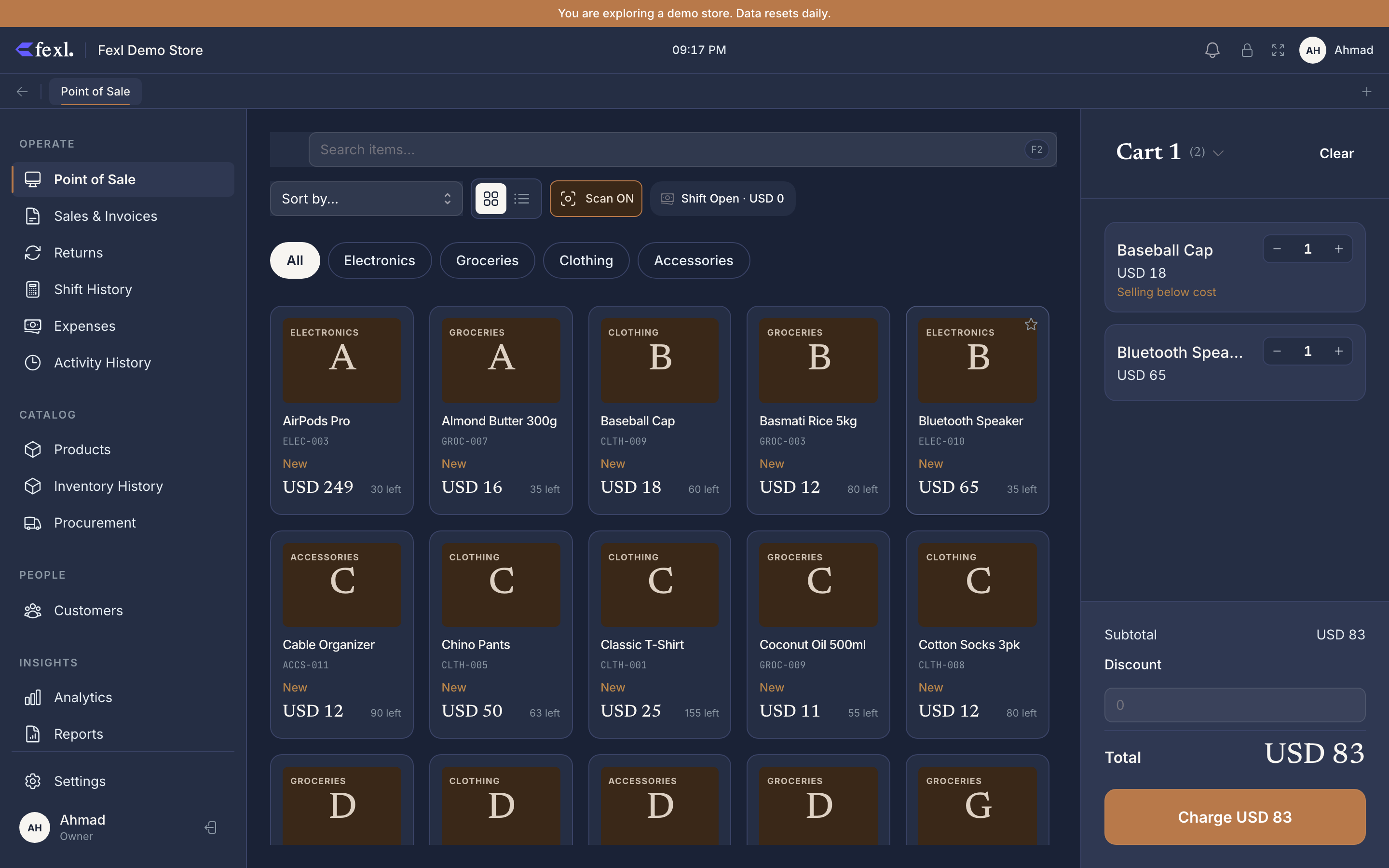
The fastest way to add a product to the cart is to scan it. Fexl Lite listens for scanner input on every POS screen — there’s no input box to focus first, no toggle in a menu to flip. Just scan.
How it works
A global keyboard listener watches for fast keystroke bursts on the POS screen. Anything that types more than three characters with less than 50 ms between keystrokes and ends with Enter is treated as a scan, not as typing. That heuristic is what lets the same screen accept both keyboard searching and scanning without a mode switch.
When a scan resolves, Fexl Lite searches in the order configured under Settings → Sales → Barcode scan field:
barcode— match the product’s barcode field only (default).sku— match SKU only.name— match product name.all— try barcode, then SKU, then name (priority order).
For variant products, a scan first tries to match a variant barcode (e.g. the specific colour/size SKU). If found, the parent product is added to the cart with that variant pre-selected. No picker dialog opens — the scanner already chose for you.
USB scanners
Plug it into any USB port
Most retail scanners — Honeywell, Symbol, Datalogic, generic Chinese — present themselves to the OS as a generic HID keyboard. There’s no driver to install on Windows, macOS, or Linux. The OS sees a keyboard; Fexl Lite reads its keystrokes.
Test by scanning anything
Open the POS screen. Scan a product. If the burst-detection heuristic matches and the barcode is in the system, the product lands in the cart and a green toast confirms it.
If nothing happens, check the toggle
The scanner toggle in the POS toolbar (look for the barcode icon) can be flipped off. State persists in localStorage, so an off scanner stays off across reloads. Click it back on.
Mobile camera scanning
On the mobile POS, the cart header shows a camera icon. Tap it to open the device camera in scan mode; aim at the barcode; the cart updates as soon as the camera resolves it. Same matching rules as the USB path. Browser support: any modern phone running Chrome, Safari, or Firefox.
Multi-scan flow
For a customer with many of the same SKU, just keep scanning the same code — quantity ticks up. To split a fast pile of mixed items, scan each one; the cart accumulates a line per distinct product and a quantity per duplicate. No mode switch, no “multi” toggle.
Manual fallback
When the barcode is faded, missing, or the product isn’t barcoded:
- Search by SKU or name in the search box at the top of the product grid — autocomplete returns matches.
- Type a barcode manually with the dev scan input. Ctrl Shift D opens a small input above the cart — useful for testing or for entering a barcode you read off a damaged label by hand.
If the product isn’t in the system at all, you have to add it under Products before it can ring up. The POS will not auto-create products from unknown scans; that’s intentional, to stop a typo from bloating the catalogue.