

Store setup
The first-launch wizard captures the bare minimum to get you to the till. Settings → General is where you finish the job — logo, receipt header, VAT rate, time zone — once, then forget it. Every receipt, invoice PDF, and report after this picks up your settings automatically.
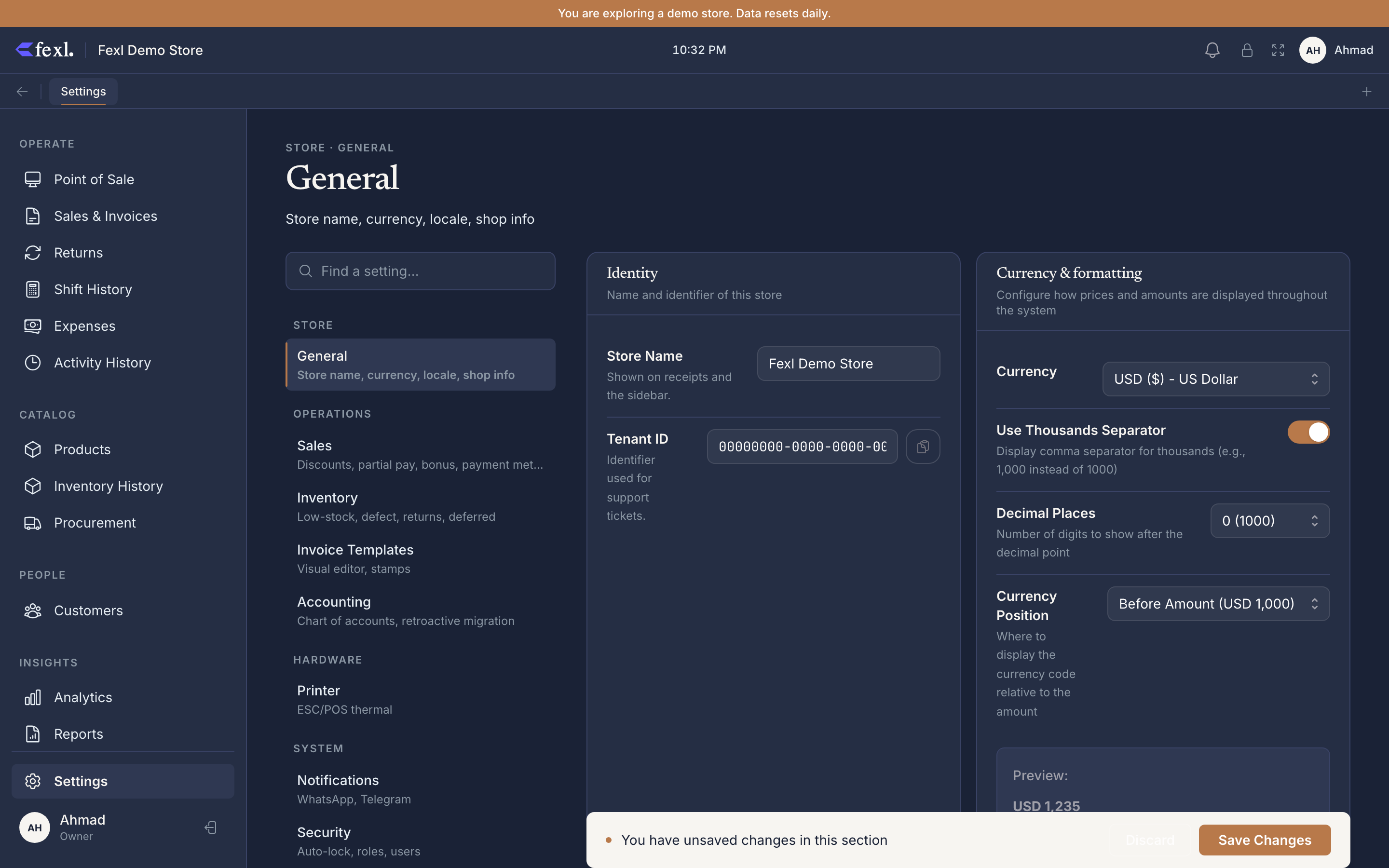
The fields, in the order you should fill them
Store name
Appears on every receipt, every PDF invoice, and the browser tab title. Keep it short — the thermal-receipt header is 48 characters wide, and long names wrap awkwardly. Use your trade name, not your legal entity, unless your jurisdiction requires the legal name on receipts.
Address and phone
Printed in the receipt header and on the A4 invoice template. Two lines of address fit comfortably on a 58 mm thermal receipt; three is the practical limit before the wrap looks ugly. Phone number is optional but commonly expected — customers call the number on the receipt when they want to return something.
Currency
The default is IQD (Iraqi Dinar) for Iraq-licensed installs and follows your license region otherwise. You can pick from 10 supported currencies (IQD, USD, EUR, MXN, GBP, AED, EGP, JOD, SAR, TRY). Once a sale has rung in this currency you cannot switch it — pick correctly on day one.
Currency format and date format
Decimal separator (1,250.00 vs 1.250,00), thousands separator, and currency symbol position (left vs right of the number). Date format follows the same idea — DD/MM/YYYY is the default for IQD installs, MM/DD/YYYY is offered for US locales. These don’t affect what’s stored — only what’s displayed on screens, receipts, and PDFs.
Language
English, Arabic, or Spanish. Arabic flips the entire app to right-to-left — sidebar on the right, cart on the left, all text mirrored. The choice is per-device, not per-tenant: one register can run in Arabic while a back-office laptop runs in English, and they sync the same data underneath.
VAT rate
Settings → Sales → VAT — toggle on, enter your rate as a percentage (e.g. 15). When VAT is enabled, every sale shows the breakdown line on the receipt and the journal entry credits the sales-tax payable account separately from revenue. Leave it off if your jurisdiction doesn’t require VAT or if your sales are below the registration threshold.
Logo upload
PNG, ideally 200×200 px, square, with a transparent background. Shows on A4 invoice PDFs (top-left of the header) and optionally on thermal receipts (above the store name, monochrome — line art reproduces best on 58 mm paper, photos turn to mud).
Receipt header lines
Up to four free-text lines under your store name on every receipt — useful for a tagline (“Open 9 to 9, every day”), a return policy (“Returns within 7 days with receipt”), or a tax-registration number some jurisdictions require. The thermal receipt re-flows these to fit; the A4 invoice gives them their own block in the header.
Time zone
Drives every date and timestamp the app records — invoice times, shift open/close, journal-entry posting dates. Defaults to your machine’s time zone; override only if you operate in a different zone from where your computer thinks it is. Time zone is per-tenant, not per-device, so all paired registers stamp consistent times no matter where the machine is.
What’s not on the General tab
A few setup items live elsewhere because they grow into their own thing:
- Payment methods — Settings → Sales. Cash and Card by default; add Mobile Money, Bank Transfer, or any custom method.
- Users and PINs — Settings → Security. Add staff, assign roles, set the auto-lock timeout.
- Invoice template — Settings → Invoice Templates. Visual editor for the A4 PDF; thermal-receipt template is configured under Settings → Printer.
- Cash-drawer policy — Settings → Inventory. Decide whether a shift must be open before cash sales can ring.
Work through them in roughly that order over your first week. None of them block the till on day one.
Related
Settings → General reference
Every field on the General tab in dense reference form, with the underlying database column for each.
Sales settings
Payment methods, partial / split toggles, VAT, bonus items, returns window — the second wave of configuration.
Receipt printers
Wire up an ESC/POS thermal printer and dial in the receipt template until it looks right on real paper.