

System settings
The System tab is the seam between Fexl Lite and everything around it: the local Go server that backs the desktop app, the cloud server it syncs to, the other tablets on the same shop’s LAN, and the disk you take backups onto. Six panels, each a different concern. None of them are urgent on day one — but you’ll touch every one of them eventually.
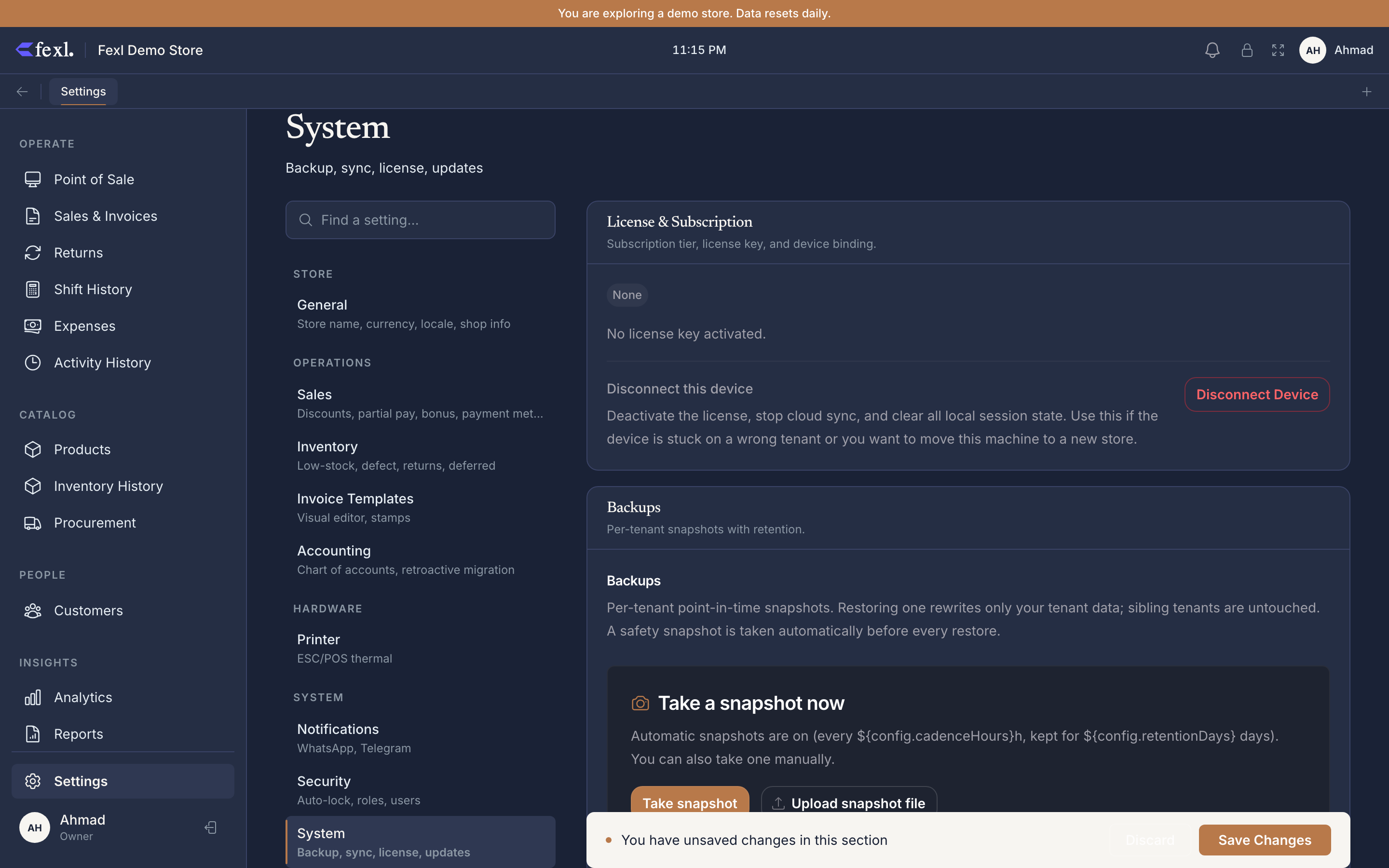
Backup & Restore
The desktop’s data lives in a SQLite file on disk — ~/Library/Application Support/com.minib2c.pos/ on macOS, %APPDATA%\com.minib2c.pos\ on Windows. The Backup panel exports that database (plus settings, attachments index, and chart of accounts) as a single JSON archive.
Export a backup
Click Export Backup. A timestamped fexl-backup-YYYYMMDD-HHMM.json lands in your Downloads folder. The whole tenant — products, customers, invoices, journal entries — is in there.
Restore from a backup
Click Restore Backup and pick a previous archive. Fexl Lite warns you the existing data will be replaced, then runs the import inside a transaction. If anything fails, the existing DB stays intact.
Backups don’t replace cloud sync. They’re a point-in-time snapshot for cold archive, hardware migration, or rolling back a bad import. For day-to-day durability, use cloud sync.
Cloud Sync
A single toggle: Enable Cloud Sync. When on, the desktop talks to a cloud Postgres server as its primary data source and keeps the local SQLite as backup. When off, the desktop is fully standalone.
The panel below the toggle asks for three values: the cloud URL (https://cloud.fexl.io or your self-hosted equivalent), the license key, and the tenant UUID. Paste them in, save, and the desktop registers itself with the cloud and waits for approval. See Pairing a device for the full flow.
Paired devices
The Devices panel lists every desktop registered against this tenant, with last seen at, device name, OS / version, and an Approved / Pending / Revoked badge. Owners can:
- Approve a pending device — it starts pulling the tenant snapshot on its next 30-second cycle.
- Rename a device (cosmetic; helpful when three “MacBook Pro” entries appear).
- Revoke a device — the next time it tries to sync, the cloud rejects the request and the desktop falls back to read-only-on-local until re-paired.
Last-seen is updated by the desktop’s sync health check, so a device that’s powered off shows its last successful check-in time. See Devices for the full per-device stats and the unpair-without-revoke nuance.
Update channel
A radio: Production (default) or Staging. Tauri-only — the web app updates on every page reload via the service worker, so the channel concept doesn’t apply there.
- Production receives signed releases that have run the full E2E scenario suite plus 24 hours on staging.
- Staging receives release-candidate builds the day they’re cut. Useful for shops that volunteer as canaries and want fixes a week earlier — at the cost of the occasional rough edge.
Switching channels takes effect at the next Check for Updates click. The desktop rebases onto the channel’s latest version on the next install.
Server status
A small panel that shows the embedded Go server’s status. The desktop bundles apps/retail/server-go-bin/retail-server as a Tauri sidecar; on app launch the sidecar starts and binds to localhost:8089. The status panel shows:
- Status — Running / Stopped / Restarting.
- Port —
8089(fixed; not user-configurable). - Uptime — seconds since the sidecar started.
- Health endpoint —
GET http://localhost:8089/api/health— used by the cloud-primary failover client to decide whether the local backup is alive.
If the status shows Stopped, the Restart Server button respawns the sidecar. This is the right first step for “the app feels frozen” — it’s almost always the local server, not the React frontend. For deeper symptoms see Connection issues.
LAN pairing
A second device on the same Wi-Fi can pair to this device’s local server (instead of a cloud server) for shops that want multi-device without a cloud subscription. The LAN panel shows:
- LAN address — the device’s
192.168.x.y:8089URL. - QR code — the same URL plus the local API key, encoded for the new device’s camera.
On the second device, open Fexl Lite → Pair to LAN host → scan the QR. The two desktops now share one SQLite via HTTP. The host device is the source of truth; if it goes offline, the joined devices go read-only.
Master Override PIN
Hidden behind a Show advanced disclosure. A 6-digit code that resets the active user’s 4-digit PIN to a fresh default — the escape hatch when an owner is locked out and there’s no other owner to reset for them. Set it once on day one, write it down somewhere that isn’t the device.
Related
Cloud sync architecture
What happens after you flip the toggle — push/pull cycles, FK resolution, last-write-wins.
Pair, approve, revoke devices
Per-device stats, the approval flow, and what revoke does to local data.
Users & auto-lock
Master Override PIN sits in System; users and roles sit in Security.
Server troubleshooting
When the local server won’t start, the port is busy, or the sidecar crashes on launch.