

Invoice list & filters
The Invoices page is where you go to find a sale. It is the only complete record of every transaction Fexl Lite has rung — paid, partial, COD, returned, cancelled, comped — and the filter bar is built so you can land on any one of them in two or three clicks.
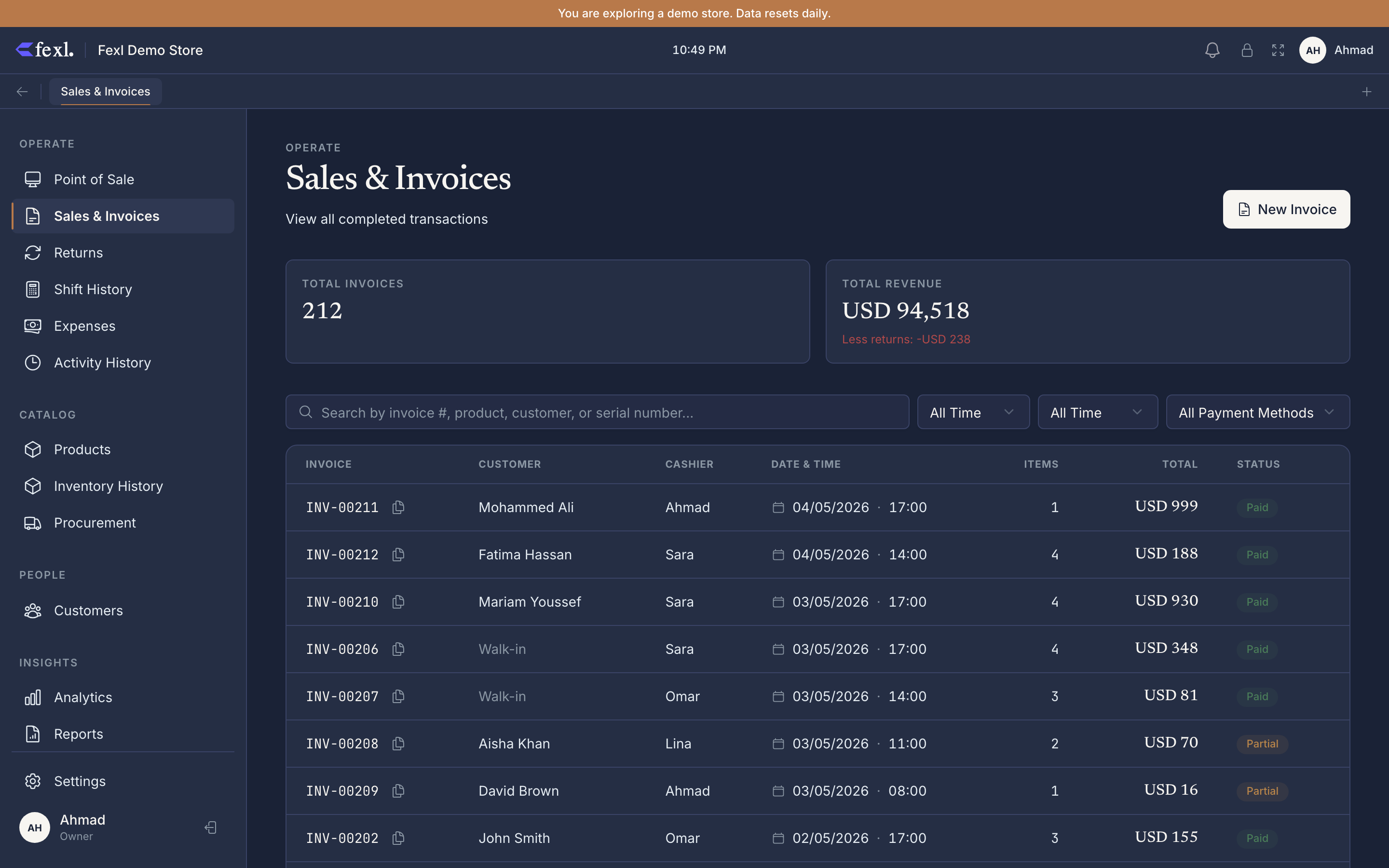
What’s on the page
Two summary cards sit on top, then the filter bar, then the list itself.
KPI cards
- Invoices — count of rows in the current filter. Cancelled invoices are included in the count but contribute zero to revenue.
- Revenue — sum of
totalfor the filter, less any returns processed against those invoices, less any line whose revenue is still deferred under deferred revenue. What you see on the card matches what hits 4010 Revenue for the same period — no reconciliation needed. The same formula is used on the Dashboard revenue figure since v1.6.105 — the two pages no longer disagree on periods that had refunds.
The Total Revenue tile is gated behind the analytics:view permission since v1.6.105 — users without analytics permission see the list and filters but not the revenue summary card.
Columns
The desktop list has eight columns: Invoice, Status, Customer (with delegate tag underneath when assigned), Date / Time, Items, Payment, Total, and an Actions column that opens the invoice detail dialog.
If returns were processed against an invoice, the original total is struck through and a Refunded chip sits below the net total. On phones the same data collapses into cards; the Status badge moves to the top right.
Status badge — single source of truth
Every invoice has exactly one status badge. The label resolves through one helper so the list, the detail dialog, and the printed receipt always show the same word. Precedence runs top-to-bottom — the first matching state wins:
- Cancelled (rose) — voided, with a reversing journal entry. Final.
- Returned (orange) — at least one return has been processed against this invoice. Note: an invoice can be both Cancelled and Returned in history; Cancelled wins.
- Pending COD (orange) — shipped via a courier, awaiting remit. The persisted
statusis stillpartialso AR aging keeps counting; only the displayed label changes. - Partial (yellow) — money still owed by the customer. See Pay later & COD.
- Split (purple) — paid in full, but with multiple methods on one sale.
- Paid (green) — fully settled, single method.
Filters
The filter bar covers the four axes you actually search on:
- Search — invoice number, product name, serial / IMEI, or customer name / phone / email.
- Date — All time, Today, Yesterday, This week, This month, or a custom range.
- Status — Paid, Partial, Split, Pending COD, Returned, Cancelled.
- Payment method — every method you have configured, plus anything that has appeared on a split.
Open the page
Click Invoices in the sidebar, or hit G I from anywhere in the app.
Narrow it
Combine filters freely — they intersect (AND), they don’t union. A Clear all filters button shows up only when at least one filter is active.
Open a row
Click any row (or tap any card on mobile). The detail dialog opens with line items, totals, payment breakdown, customer info, and any returned items inline.
Related
Open an invoice
What lives inside the detail dialog: line items, payment breakdown, action bar, the print, cancel, and refund flows.
Partial & split payments
Pay-some-now-debt-the-rest, multiple methods on one sale, and the cash-overpay change scenario.
Cancel an invoice
When the whole sale is wrong: reversing journal, restocked inventory, refunded cash leg.