

Ring a sale in Fexl Lite
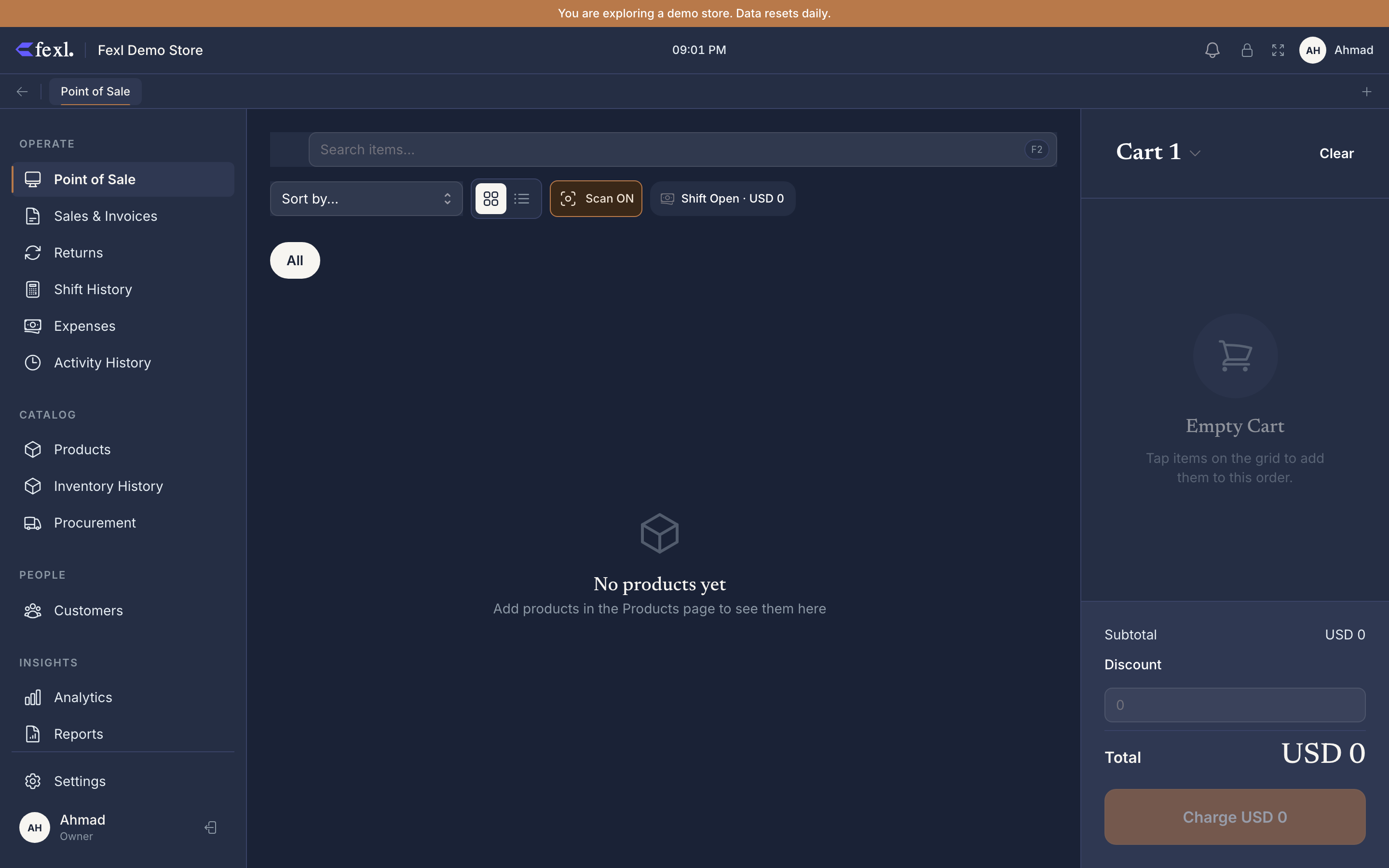
The point-of-sale screen is the first thing most Fexl Lite users see and the one they spend the most hours in. Everything is built around speed: scan, ring, settle, repeat. This page is the basic happy path. The variants — split payments, debt, COD, bonus items, multi-cart — branch off it.
The five-second sale
Open the POS screen
Click POS in the sidebar (or press the POS hotkey on a launcher device). The default cart is already open and waiting — you don’t create one to start ringing.
Add a product
Three ways:
- Scan the barcode. Just scan — there’s no input to focus first. Fexl Lite listens for scanner input on every POS screen and adds the matched product instantly.
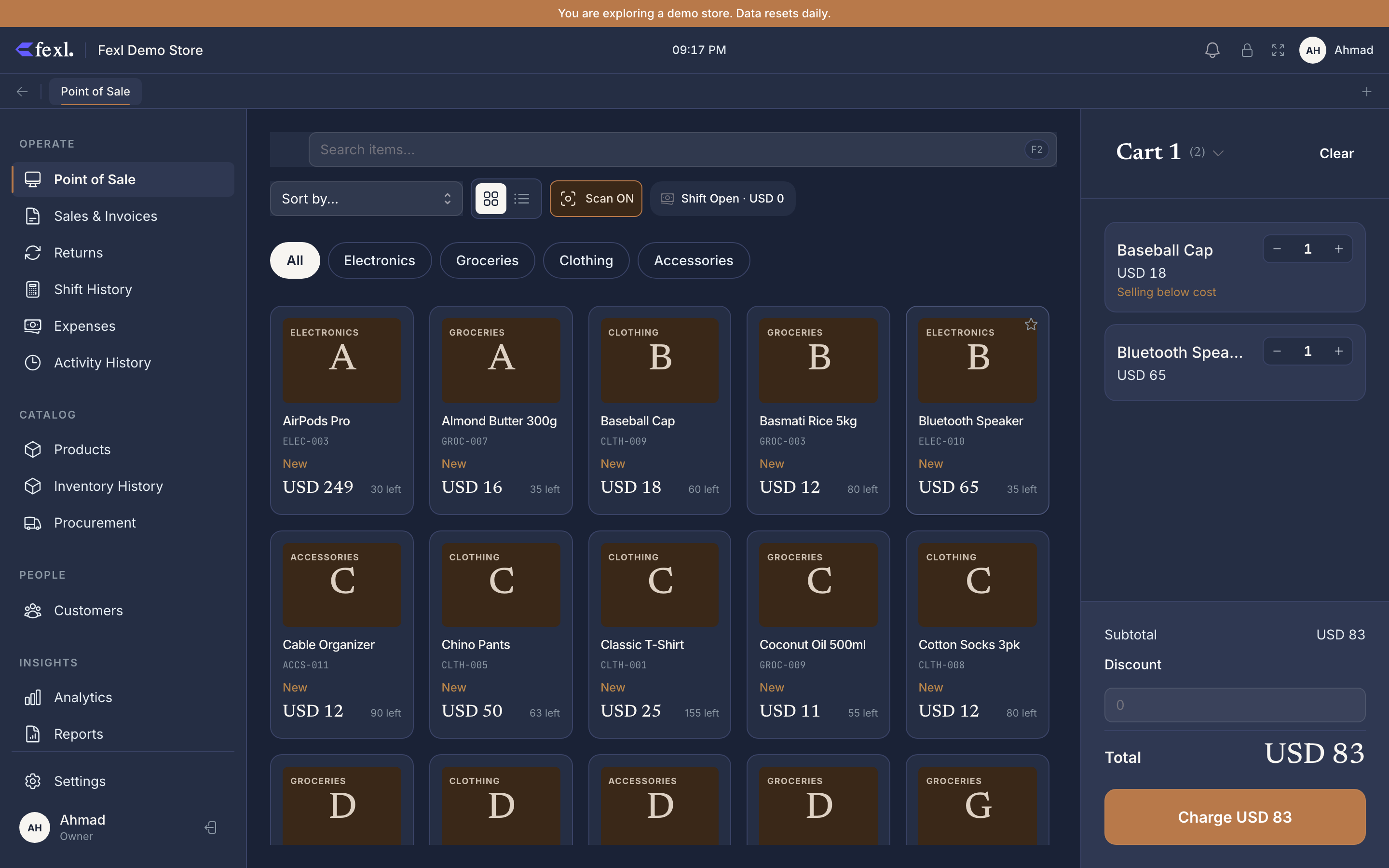
- Tap a product card in the grid. Filter by category, search by name, or browse.
- Type a product code in the search box. Pick from the autocomplete list.
Variants, batches, and serialised items all open a picker after you select the product — pick the size, the lot, or the IMEI before it lands in the cart.
Adjust the cart (optional)
Once items are in the cart you can:
- Edit quantity — tap the number, type a new one, hit Enter.
- Apply a discount — per line or on the order total. Percentage or fixed amount.
- Add a customer — search by phone or name; if they’re new, Create on the fly without leaving the cart.
- Assign a delegate — for commission tracking on the sale.
None of this is required for a basic sale. Skip straight to checkout.
Checkout
Click the green Checkout button at the bottom of the cart. The checkout dialog opens with the total at the top.
Choose your payment type:
- Full — customer pays the whole amount now.
- Partial — customer pays part now, the rest goes on their tab as debt.
- Split — multiple methods on one sale (e.g. 50,000 cash + 100,000 card).
Then pick the payment method (Cash, Card, Bank Transfer, etc.) and enter the amount.
Confirm
Review the total. Click Complete Sale (or press Enter ). The receipt prints automatically on the active receipt printer; the cart resets to empty; you’re ready for the next customer.
The journal entry posts immediately: revenue (4010) credit, sales tax credit if VAT applied, debit to the chosen settlement account, COGS write-off (5010) at the FIFO unit cost.
(For settlement accounts: cash sub-accounts are 1010-*, customer credit liability is 2100.)
Variants and shortcuts
The basic flow above covers ~80% of sales. The other 20% branch off:
Park a cart, serve next
Customer steps away mid-sale? Hold their cart, ring up the next person, resume later. No data loss, no cart-merge prompts.
Cash + card on one sale
Mix payment methods on a single invoice. Useful for tips, gift cards, foreign currency.
Add customer at checkout
Capture a new customer’s phone + name without leaving the cart. They’re saved to the directory automatically.
Free / bonus items
Buy-one-get-one, free gifts, bundle promotions. The bonus line is tagged so cost-of-goods reports separately on account 5020.
Per-line + order discount
Percentage or fixed amount. Per-line is a price override; order-level is split proportionally across lines for accounting.
Sale dated yesterday
For end-of-day reconciliation when a sale was missed at the register. Permission-gated; affects period-close reports.
What if…
…the customer wants to pay later?
Choose payment type Partial and enter 0 as the paid amount. The full total goes on the customer’s tab as debt. You can settle it any time from the customer detail page or at their next visit.
…they’re paying on delivery?
Pick the COD payment method. Fexl Lite issues the invoice with payment_status = pending and skips the cash-drawer write — money lands when the courier returns it. Bug #29 in v1.6.100 tightened the COD label so it now shows correctly on shipping invoices.
…the printer is offline?
The sale still completes. The receipt queues for the next print attempt and a toast warns you. You can re-print from the Invoices page once the printer reconnects. If the printer never comes back, see Troubleshooting → Printing issues.
…there’s no internet?
Fexl Lite is offline-first. Sales ring, receipts print, the journal posts to the local SQLite — all without network. When connectivity returns, the sync worker pushes the queued invoices to the cloud. See Sync & Cloud → How sync works.