

Suppliers & Procurement
Suppliers in Fexl Lite is the running list of every vendor you buy from, paired with one number per row that tells you exactly where you stand: do you owe them, do they owe you, or are you square. Behind that simple list sits the procurement chain — purchase orders, landed-cost extras, receive-to-stock — and a payment ledger that posts to AP (2010) on every move.
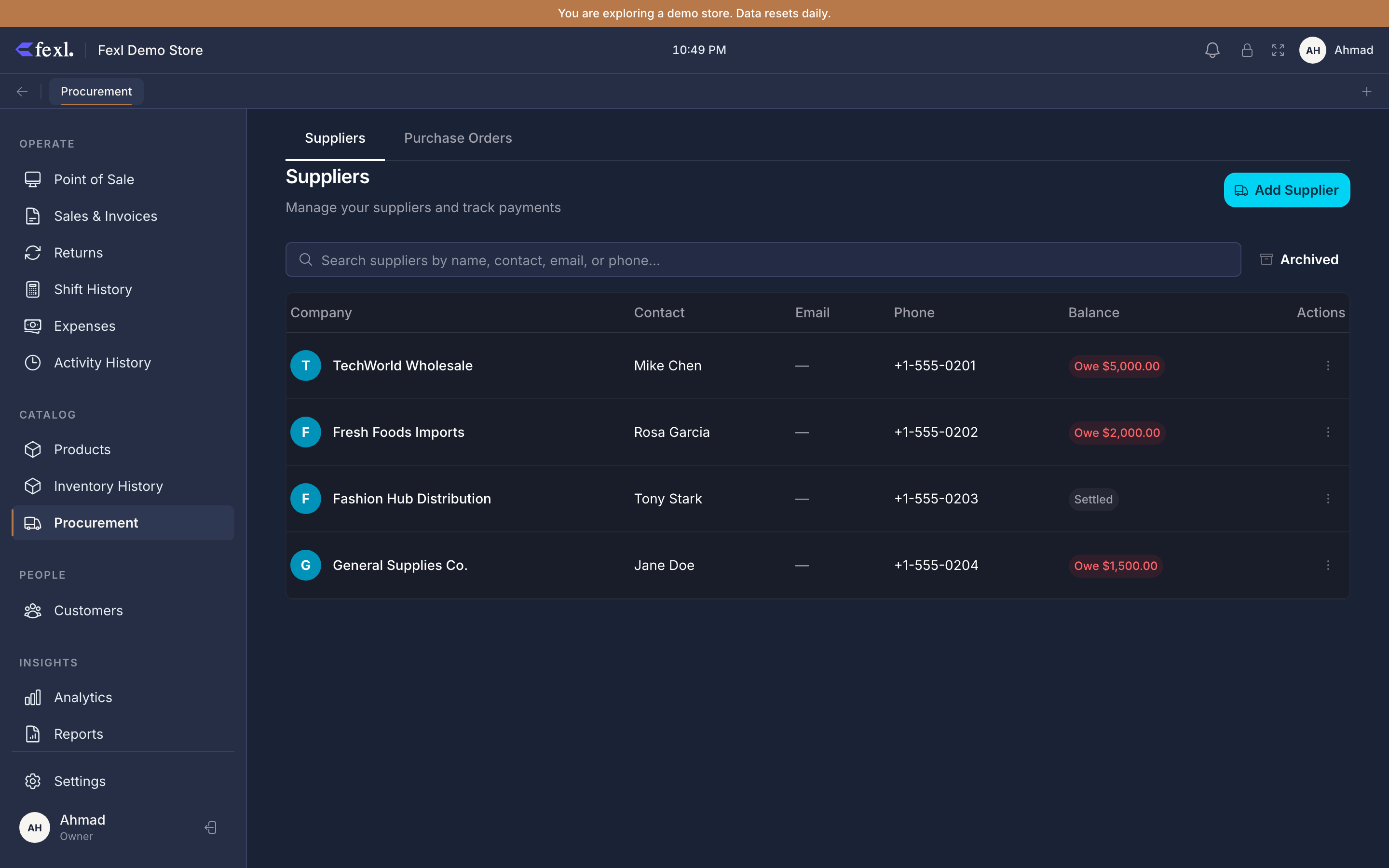
What’s on the Suppliers page
Each row is one vendor, with five columns:
- Company — the supplier’s name, prefixed with a cyan circle initial. Click anywhere on the row to open detail.
- Contact — the named individual you deal with, if you set one. Falls back to
—. - Email and Phone — separate columns; emails truncate at 200px to keep the row tidy.
- Balance — a coloured pill that’s the only number you actually need to read on this page:
- Red
Owe <amount>— you owe the supplier. Net of opening balance plus everything posted astype='owed'minus everything paid. - Green
Credit <amount>— the supplier owes you (you over-paid, or they reversed a charge). - Zinc
Settled— exactly zero.
- Red
Above the table sits a search box (matches name, contact, email, or phone) and an Archived toggle. Archived suppliers are soft-deleted: the records stay in the database for historical PO and payment lookups, they just hide from the live list.
The row’s overflow menu carries View History, Record Payment (permission-gated on suppliers:manage_payments), Edit, and Archive. On mobile the table collapses to cards with the same actions on a per-card menu.
Supplier detail
Open a row to land on the detail page. Three tabs:
- Overview — opening balance, contact info, the running balance card, and quick Record Payment / Record Owed buttons.
- Payment History — every
supplier_paymentsrow in reverse chronological order. Each row showstype(paid/owed), amount, payment method, optional product/variant link (when the payment was tied to a restock), and free-text notes. - Purchase Orders — every PO raised against this supplier with status, date, total landed cost, and a click-through to the PO detail page.
The Restock from this supplier button on the Overview tab jumps straight to a new PO pre-filled with the supplier picked. Use it when you’re starting from “I just got a delivery from Hassan’s distributor” rather than “I need to order something.”
Procurement at a glance
Three flows touch suppliers, in roughly increasing weight:
Ad-hoc restock
Single product, single cost, optional supplier. Posts straight to the FIFO layer; no paperwork.
Purchase orders
Multi-line, multi-cost, draft → ordered → received. The only flow that can split landed costs across lines.
Pay or accrue
Record paid against AP, or stamp a manual owed for a charge that arrived without a PO. Posts JE in both directions.
What posts to the books
Every supplier event writes a journal entry. The codes match the seeded chart of accounts (see Chart of accounts).
- Owed posted (manual or via PO receive) — DR 1200 Inventory, CR 2010 AP.
- Payment to supplier — DR 2010 AP, CR cash sub-account (1010-xxx) that the active shift is tied to.
- PO received with no supplier (rare; cash purchase from petty) — DR 1200 Inventory, CR 3010 Owner’s Equity.
- PO voided — reverses the original ingress with a CR to 1200 and a DR to whichever account took the credit on receive (2010 or 3010), and zeros the FIFO
qty_remainingfor the layer so future sales skip it.
Deep dives
The supplier list
Columns, filters, archive lifecycle, the balance pill, and the inline create-on-the-fly path.
Record a payment or owed
Two-step confirm, payment method picker, the JE that posts on each, when to use which type.
Raise a purchase order
Draft → confirmed → received → optional voided. Items, extra costs, last-cost defaults, validation gates.
Receive a PO
Stock lands in inventory, FIFO layers open, supplier balance ticks up. Mark paid in the same dialog or pay later.
Landed cost & extras
Freight, customs, handling. How extras are split across lines by quantity weight to arrive at per-unit landed cost.
Attachments
Drop the supplier invoice or shipping doc onto a PO so it travels with the record. Visible on the PO detail page.
Related
- Receive a PO — what changes in inventory, AP, and journal entries when you confirm
- FIFO costing — how the layer that a PO opens drains on later sales
- Inventory Valuation report — open layers × cost across every supplier
- AR/AP Aging — the AP side of the supplier balance over time
- Chart of accounts — full ledger codes