

Products & Inventory in Fexl Lite
Products & Inventory is your stock, the way you actually run it: three precision levels — a simple quantity count, unique serial numbers, or batch lots with expiry — all tracked from the same screen, and all costed FIFO so cost-of-goods stays honest as prices drift.
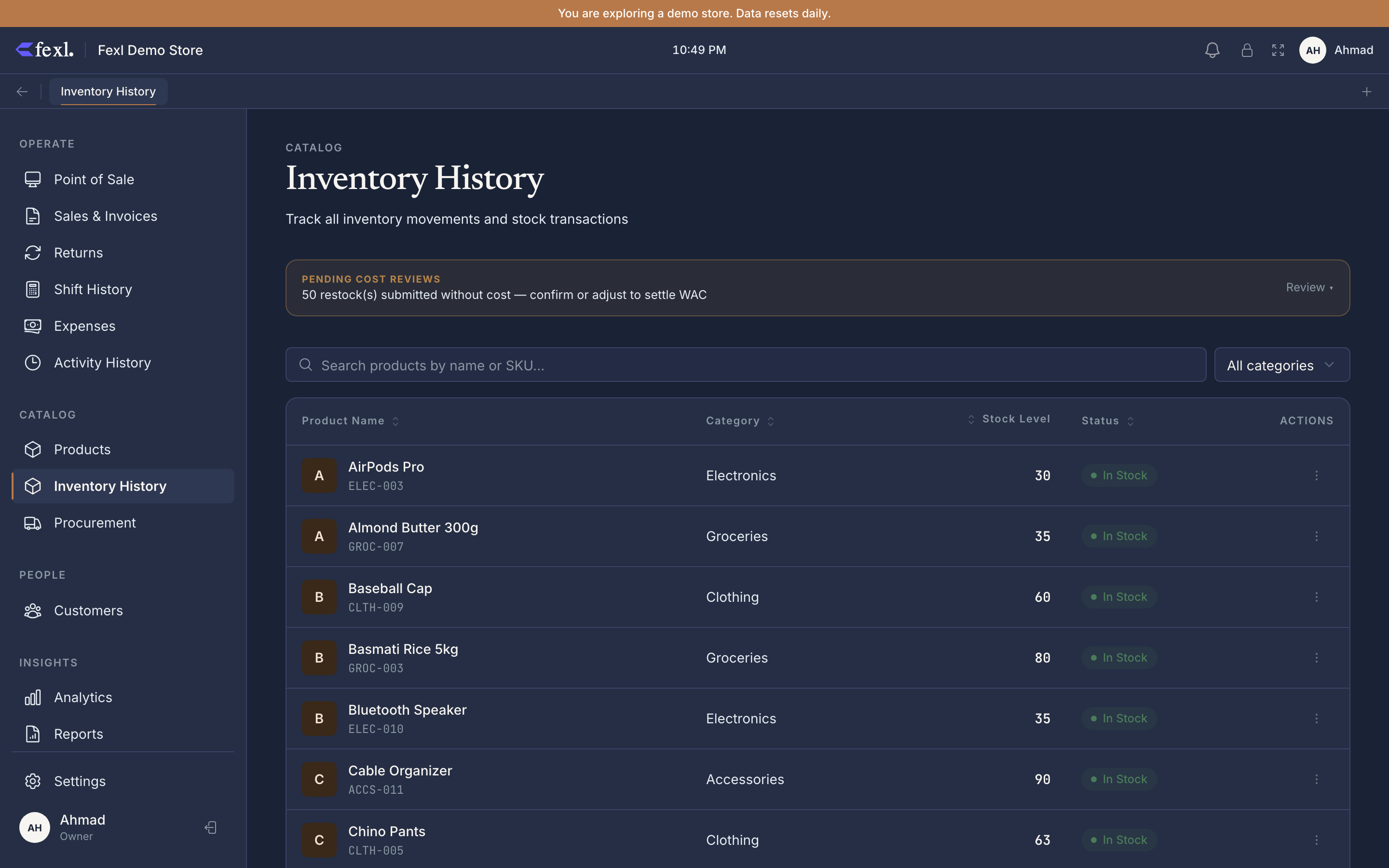
What’s on the Inventory page
The Inventory page is the daily-driver view of “what do we have, and what’s running out.” Every product line shows up exactly once, with five sortable columns:
- Product Name — the name as it appears on the POS grid and on receipts.
- SKU — the internal stock code, monospaced for quick scanning.
- Category — pulled from the product itself; also drives the category bar at the top of the page for one-tap filtering.
- Stock Level — total units across all variants, batches, and serials. Red and bold when the level is at or below the low-stock threshold.
- Status — a coloured badge: In Stock (green), Low Stock (yellow), or Out of Stock (red).
Above the table, a search box matches on name or SKU, and the Category Bar lets you drill into a single category. Sort preferences (which column, ascending or descending) are remembered between sessions, so the page reopens the way you left it.
Each row’s overflow menu carries the per-product actions: View History, View Tracking (for serialized or batched products), Remove Stock, Reassign Unassigned (only appears when a variable product has legacy null-variant stock that needs a human call), and Delete.
The three tracking modes
Every product you create picks exactly one tracking mode, and the choice drives how Fexl Lite handles stock for the rest of that product’s life.
- Quantity — a simple integer count. Best for fast-moving SKUs where one unit is interchangeable with the next: t-shirts, soft drinks, packaged groceries.
- Serialized — every unit has a unique identifier (IMEI, serial number, asset tag). The POS forces you to pick the exact unit at sale time; returns and warranty work track the individual piece.
- Batch — units are grouped by lot number and, optionally, expiry date. Fexl Lite sells the oldest batch first and warns when expiries approach. Right for pharma, food, cosmetics, anything with a shelf life.
Pick one per product when you create it. The tracking mode is locked in for the lifetime of the product (changing it mid-stream would break historical journal entries) — so think a beat before saving. The full mechanics of each mode, including configuration knobs like the identifier label and the expiry warning window, live on the tracking modes deep dive.
Common tasks
Restock from a supplier
Open the product, hit Restock, pick the supplier, enter the quantity and unit cost. A new FIFO layer is added; landed costs from the purchase order (shipping, customs) flow into the layer cost automatically by weight.
View per-product history
From the row’s menu pick View History. The timeline shows every ingress (green up-arrow), egress (red down-arrow), and adjustment (orange) — with supplier or customer attribution, the user who did it, the unit cost, and any notes. Serial numbers and variant attributes are stamped right onto the entry.
Set a low-stock threshold
In Settings → Inventory, set the global low-stock threshold (default 10). The Inventory page badge flips to yellow at or below it; the dashboard surfaces a low-stock alert tile.
Generate barcodes and print labels
On the Products page, the Generate Barcode button creates a unique EAN-compatible code for any product missing one. The Print Labels action exports a PDF of barcode labels you can run through any sticker printer.
Manage defect inventory
When a return is routed to “defect” instead of back to sellable stock, it lands on the Defect Inventory page. From there you bulk-select pending items and route them to a supplier as a return — status flips through Pending → Awaiting Shipment → Sent to Supplier → Resolved.
Run an inventory valuation
Reports → Inventory Valuation prices every unit on hand at its FIFO cost layer for an exact stockroom value. Inventory Moves gives you the same data as a movement log over a date range. #67 v1.6.100 The Moves report’s source column now emits a readable label instead of a raw enum.
Deep dives
Quantity vs serialized vs batch
The three precision levels side by side: when each is right, what each costs you in friction at the till, and how to migrate a product if you guessed wrong on day one.
Create a simple product
Name, SKU, barcode, price, category, condition. The minimum viable product line — most retail stock fits here.
Variable products & the variant manager
Size / colour / style matrices. One parent product, many sellable variants, separate stock counts per variant.
Serialized stock (IMEI, S/N)
Every unit unique. Picker at the till, per-unit history, warranty-friendly. Used for phones, electronics, repair items.
Batch & expiry tracking
Lots with shelf lives. FIFO-by-expiry, near-expiry alerts, batch picker on returns and the till.
Barcodes & label printing
Generate codes, scan to find, print sticker sheets via PDF.
Restock & cost layers
How a restock writes a FIFO layer, how landed cost from a PO is split across lines, and what shows up on the General Ledger.
Per-product timeline
Every move, every adjustment, with supplier / customer / user attribution and serial / variant tags.
Low-stock thresholds & alerts
Global default plus per-product overrides; dashboard tile and Inventory list badges.
Defect inventory & supplier returns
Where return-to-defect items live, how to bulk-route them to a supplier, and the four-state lifecycle.
FIFO costing explained
Per-layer qty_remaining, how sales drain the oldest layers first, and how cancel-restore returns cost back to the right layer.
Related
- Suppliers & purchase orders — where new stock comes from
- The 5-step return wizard — how items leave stock or land in defects
- Inventory Valuation report — exact stockroom value at FIFO cost
- Inventory Moves report — every ingress and egress over a date range
- Release notes — full bug-fix history