

Customers in Fexl Lite
Customers are how you turn one-time buyers into known revenue: each account carries a true running balance, with debt and store credit tracked through every sale, return, and payment so you always know who owes whom.
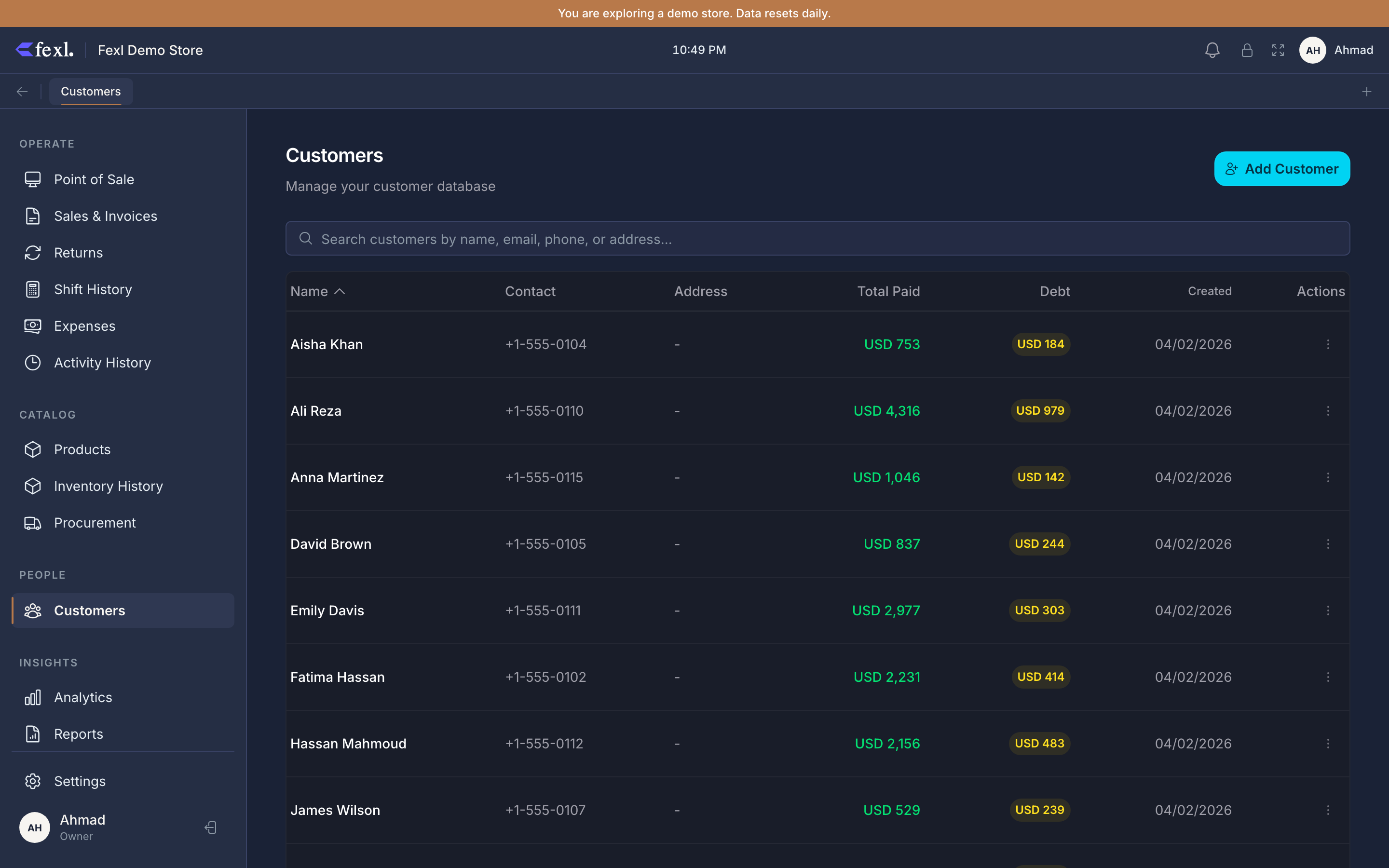
What’s on the Customers page
The list shows every active customer (archived accounts are filtered out automatically) with the columns you actually search on:
- Name — sortable, with the customer’s first initial in a coloured avatar.
- Contact — email and phone stacked in one cell.
- Address — truncated with a tooltip on hover.
- Total Paid — lifetime amount this customer has settled.
- Debt — current outstanding owed to the store, sortable.
- Date — when the account was created, sortable.
- Actions — the per-row overflow menu (View Details, Pay Debt, Edit, Delete).
A search box above the table matches on name, email, or phone. On phones the list collapses into cards with the same data, and the net-balance badge moves to the bottom of each card.
The net-balance badge
Every row carries one badge that summarises the financial state of the account:
- Yellow —
Owes <amount>: the customer’s net balance is positive. They owe you money. - Cyan —
Credit <amount>: the net balance is negative. You owe them store credit. - No badge: the account is square — no debt, no credit.
The same colours are used on the customer detail page, the POS customer picker, and the printed statement — one visual language wherever you read it.
The financial model
Common operations
- Open the detail page — click any row. Contact, opening balance, invoices, debt payments, credit transactions, and the running statement all live on one screen.
- View the statement — a chronological ledger with debit, credit, and running balance columns. Print to A4 or export to CSV.
- Take a debt payment — applies to invoices oldest first (FIFO), then to any opening balance. Cash payments require an open shift.
- Give store credit — lands on the account automatically when a return is settled as “Store credit” instead of cash or card.
- Withdraw credit — pays the credit balance back out via any payment method; cash withdrawals post a
cash_outto the active shift. - Create on the fly at the POS — the customer picker has a + New action; type name and phone, the account is created and attached to the cart.
Deep dives
Debt vs store credit
The two-balance model in detail: what posts to balance, what posts to creditBalance, how netBalance is derived, and which accounts each event hits in the journal.
Take a debt payment
The FIFO allocation across invoices, the opening-balance fallback, the cash-shift requirement, and what shows up on the statement afterwards.
Withdraw store credit
Pay credit back out by cash or card, why the withdrawal hits the cash drawer for cash methods, and where the journal entry lands.
Customer statements
The chronological ledger: opening balance, sales, payments, debt payments, credit movements, and the running balance column. Print to A4 or export to CSV.
Related
- On-the-fly customer creation at the POS — name, phone, attach to cart in one move
- Pay-later & cash-on-delivery invoices — how an unpaid sale becomes customer debt
- Credit refunds & debt deductions — how a return builds the customer’s credit balance
- Release notes — full bug-fix history